

You open an app, and a message appears: error RCSDASSK. You have never seen it before. A quick search gives you ten websites that all say different things.
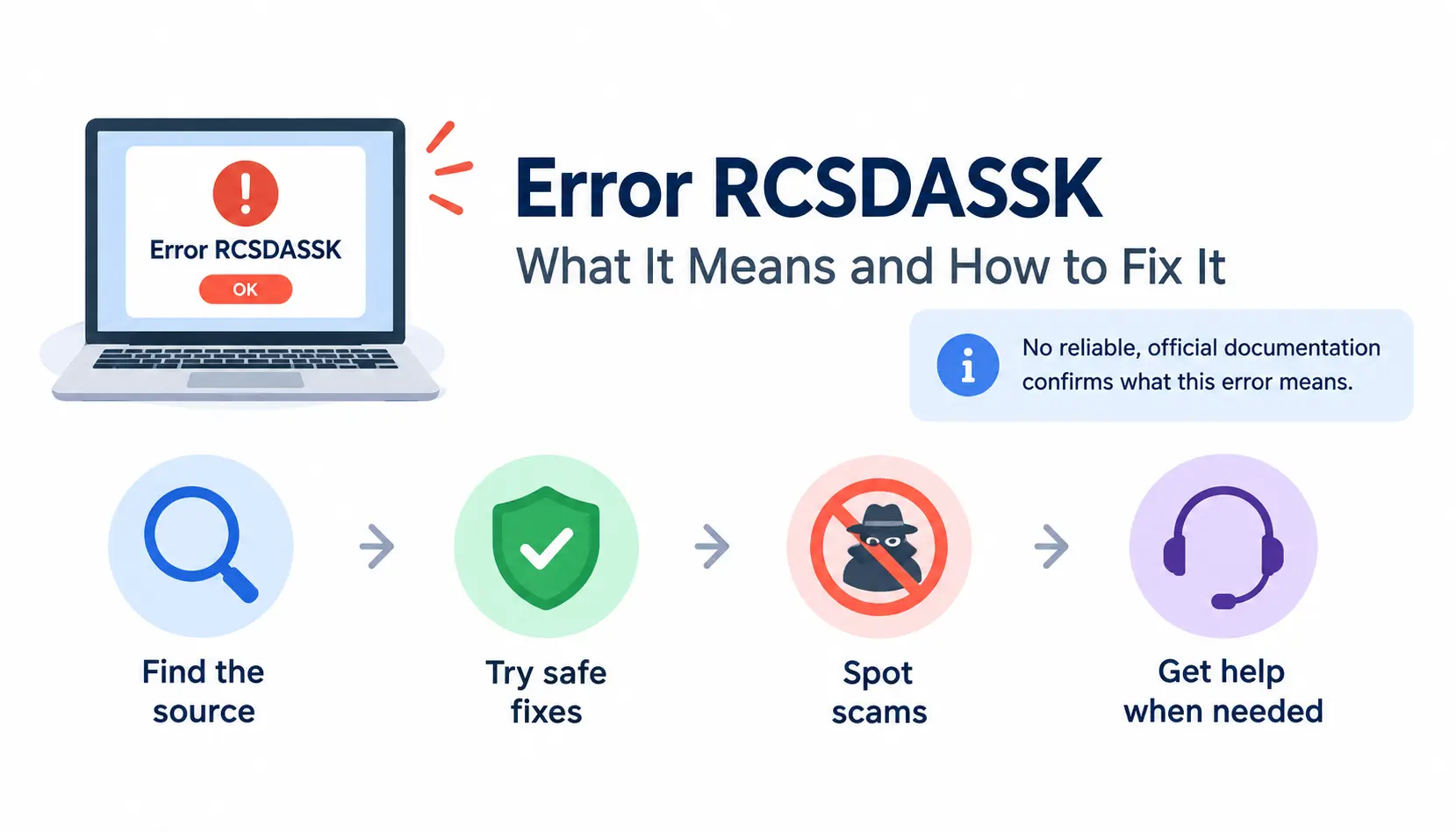
Here is the direct answer. No reliable, official documentation confirms what error RCSDASSK means. It is not a documented Windows, macOS, or Linux system code that we could verify. Many sites repeat the same claims without citing a source, so repetition is not proof.
That does not leave you stuck. This guide shows you how to find which software produced the error, try safe fixes in order, spot scams, and know when to ask for help. We will not guess at a root cause before we know which app is involved.
What Is the RCSDASSK Error?
Think of an error code as a label. Some labels are standard, like Windows stop codes or HTTP 404. Others are private labels that one app invents for its own use.
RCSDASSK does not match any standard system format we could confirm. It may be an internal identifier from a single application, a log tag, or a message on a web page. The code alone does not tell you the cause.
Is RCSDASSK an Official Error Code?
We could not verify that it is. Here is what that means in practice:
- Verified: No official Microsoft, Apple, or Linux documentation we reviewed lists it.
- Not verified: Any claim that it points to a specific fault, such as a corrupt registry or a broken driver.
To check for yourself, search the exact code on the support site of the app that showed it. Use the vendor’s own knowledge base, not a general search. Also be careful with sites that look alike. When many pages repeat one claim, they may all be copying each other. That is not independent confirmation.
If you want a second opinion from real users, communities like techsupport are useful. Post the full error text, the app name, and your operating system. Treat replies as leads to test, not as facts.
What Does RCSDASSK Stand For?
No verified expansion exists. You may see sites that spell out the letters as a phrase. Ignore those. An invented acronym sounds convincing, but it can send you down the wrong repair path.
A letter-by-letter guess is not technical evidence.
Where Might the Error Appear?
People report unfamiliar codes in places like these:
- Pop-ups inside an application
- Login or sign-in screens
- Software installs or updates
- Operating-system logs
- Terminal output or background processes
Where you saw it is your best clue. We will use that in the diagnosis section.
What Causes the RCSDASSK Error?
We cannot name a confirmed cause. What we can do is list the common categories behind unfamiliar app errors. Treat each one as a place to look, not a diagnosis. The general idea of an error message is that it signals something went wrong, but the wording rarely explains why.
Corrupted or Incomplete Application Files
Imagine an update stops halfway because your laptop lost power. The app now has some new files and some old ones. It may fail at launch with a strange message.
Common triggers include interrupted downloads, failed updates, and missing dependencies.
File Permissions or Configuration Problems
Apps need permission to read and write certain files. If permissions change, the app may be blocked. Look for “access denied” messages, wrong file ownership, or recent changes to app settings.
Outdated or Incompatible Software
An old app on a new operating system can fail. So can a new app on an old system. Driver or library conflicts and recent software changes are common suspects.
Login, Authentication, or Network Issues
If the app talks to a server, a dropped connection or expired session can produce odd errors. Sometimes the problem is on the server side, and nothing on your device is broken.
Browser Warnings or Suspicious Pop-Ups
Some messages come from a web page, not from software on your device. A web page can display any text it likes, including a fake error code.
Seeing an unfamiliar code does not prove you have malware. It also does not prove you are safe. We cover how to tell the difference later in this guide.
How to Diagnose Error RCSDASSK Before Fixing It
Most people skip this step and start clicking. That wastes time and can cause new problems. Spend five minutes on diagnosis first.
Step 1: Record the Full Error Message
Take a screenshot. Then write down:
- The exact wording, including capital letters and numbers
- The date and time
- What you were doing when it appeared
Small details matter. A support team can often match a timestamp to a log entry in seconds.
Step 2: Identify the Application or Process
Ask where the message came from. Check the window title and the app name. Look for a process name in the error details or logs.
Then decide which of these three it was: an app, the operating system, or a web page. The fix is very different for each. When researching an unfamiliar software issue, compare the available explanations with reliable software troubleshooting and technology advice and verify technical claims against official documentation.
Step 3: Check Recent Changes
Errors often follow a change. Ask yourself:
- Did I install or update anything recently?
- Did I change permissions or settings?
- Did I add security software or a network restriction, such as a new firewall or VPN?
If the error began right after a change, that change is your first suspect.
Step 4: Inspect the Relevant System Logs
Logs record what your system was doing when the error happened. Open the right tool for your platform:
- Windows: Event Viewer. See Wikipedia’s overview of Event Viewer.
- macOS: the Console app.
- Linux: journalctl and the logs in /var/log. Most modern distributions use systemd, which stores logs this way.
Match the time of the failure to the log timestamps. Look for entries around that moment that name an application, a file, or a service. That name tells you who is responsible.
How to Fix the RCSDASSK Error Step by Step
Start with the least disruptive fix. Move on only if the problem remains. None of these are guaranteed RCSDASSK fixes. They are standard, safe steps for unexplained app errors.
Fix 1: Restart the Affected Application
Save your work first. Close the app fully, then reopen it. Check whether the error returns.
This clears temporary glitches. It is quick, and it fixes more problems than people expect.
Fix 2: Restart the Device
Complete any pending restart requests from updates. Then repeat the action that caused the error.
A restart clears stuck processes and finishes half-applied updates.
Fix 3: Check the Internet Connection and Login Session
If the app uses a server, confirm your connection works. Try opening a trusted website.
Then sign out and sign back in using the official app. Never share your password or authentication tokens with anyone who contacts you about this error.
Fix 4: Update the Application and Operating System
Use only official update channels, such as the app’s own updater, Windows Update, the macOS Software Update setting, or your Linux package manager.
Read the release notes for compatibility details. Avoid third-party driver download sites. They are a common source of unwanted software.
Fix 5: Clear the Application Cache Where Appropriate
Use the app’s built-in option for clearing its cache. Most apps place it in settings.
Before you do, back up any important settings or saved data. Do not go hunting for folders to delete by hand, especially system folders you do not recognize.
Fix 6: Check File Permissions and Configuration
Look at the files or folders the error points to. Only change permissions if you have found a specific access problem, such as an “access denied” message for one file.
Avoid blanket changes. Never run recursive ownership or permission commands on system directories. One wrong command can break your whole system.
Fix 7: Repair Corrupted Windows System Files
This fix applies to Windows only, and only if you suspect system-file damage. Signs include crashes in several apps, failed updates, or errors that appear across the system.
Open Command Prompt as administrator and run:
sfc /scannow
System File Checker scans protected system files and replaces damaged ones. Microsoft explains the tool on its official support page. Wikipedia also has a short summary of System File Checker.
If SFC reports problems it cannot fix, Microsoft recommends the DISM tool next:
DISM /Online /Cleanup-Image /RestoreHealth
When DISM finishes, restart and run sfc /scannow again. These tools repair Windows itself. They are not an RCSDASSK-specific fix, so do not expect them to solve an app-only error.
Fix 8: Repair or Reinstall the Affected Application
Back up your data and settings first. Then try the app’s built-in repair option, if it has one. On Windows, you can often find it under Installed apps in Settings.
If that fails, uninstall the app and reinstall it from the vendor’s official website. Do not use download sites you do not know.
Fix 9: Investigate Recent Updates or Software Conflicts
Review what changed before the error began. To test for conflicts, start your system in a reduced mode:
- Windows: Safe Mode or a clean boot
- macOS: Safe Mode
If the error disappears, something you normally run is interfering. Turn items back on one at a time until it returns. Roll back an update only if the evidence points to it.
Fix 10: Run a Security Scan if There Are Other Warning Signs
Use the built-in security tool on your device or a reputable security product. Do this if you see other warning signs, such as unknown programs, browser redirects, or sudden slowness.
An unfamiliar code on its own is not evidence of infection.
How to Troubleshoot RCSDASSK on Different Operating Systems
The steps differ by platform. Do not run Windows commands on a Mac, or the reverse.
Windows 10 and Windows 11
- Check Event Viewer and the app’s own logs.
- Review Windows Update and the app’s compatibility notes.
- Use SFC and DISM only when system-file corruption is likely.
macOS
- Open Console and look for entries around the time of the error.
- Check for app updates and review the app’s permissions in System Settings.
- Use Safe Mode to isolate conflicts. On a Mac with Apple silicon, shut down, then press and hold the power button until startup options appear, select your disk, hold Shift, and choose Safe Mode. On an Intel Mac, hold Shift during startup.
Linux
Check recent errors from the current boot:
journalctl -b -p err
Then review ownership and permissions for the files the app uses. To verify installed packages, use your distribution’s tools. For example, dpkg –verify <package> on Debian and Ubuntu, or rpm -V <package> on Fedora and similar systems. Reinstall the affected package with your package manager if files are missing or changed.
Commands vary by distribution, so check your distribution’s documentation before running anything.
Which RCSDASSK Fix Should You Try First?
Use this table to pick a starting point. The categories are possible causes to investigate, not confirmed RCSDASSK causes.
| What you observe | Possible cause category | First diagnostic action | Recommended next step |
| Error after installing software | Incomplete install or conflict | Note the app and install time | Repair or reinstall from the official source |
| Error during login | Session, credentials, or network | Test your connection and the service status | Sign in again through the official app |
| Error after an update | Update bug or incompatibility | Check release notes and logs | Look for a patch, or roll back if evidence supports it |
| Error when opening one app | App files or settings | Check that app’s logs | Restart, update, then repair or reinstall |
| Error during startup | Startup item or system issue | Review startup logs | Test in Safe Mode or a clean boot |
| Error only in a browser | Web page message or extension | Try another browser or a private window | Close the page; do not follow its instructions |
| Error with crashes or odd behavior | System corruption or malware | Check logs and run a security scan | Run SFC and DISM on Windows; contact support if it persists |
Is the RCSDASSK Error a Virus or a Scam?
Writing
If the error appears on a suspicious web page, use a URL parser tool to inspect the web address components, but remember that parsing a URL does not establish whether a website is safe.
There is no evidence that RCSDASSK itself is a virus. But fake error messages are a common tool for scammers. The pattern is well documented, and Wikipedia describes it under technical support scam.
Here is a realistic example. You visit a website and a full-screen alert appears with a loud sound. It says your computer is damaged and gives a phone number. That is a web page, not your computer talking.
Signs of a Suspicious Browser Pop-Up
- Urgent threats or countdown timers
- A phone number to call for “support”
- Requests to install unknown software
- Requests for remote access or sensitive information
What to Do if the Warning Looks Suspicious
- Do not call the number or download the suggested tool.
- Close the tab or the browser. If it will not close, force-quit the browser.
- Run a security scan if something else seems off.
- Change your passwords only if you have a credible reason to think they were exposed, such as entering them on the suspicious page.
How to Choose a Safe Repair Method
- Prefer built-in tools and official vendor documentation.
- Avoid registry cleaners and unverified “repair” utilities. They often cause more harm than they fix.
- Back up important data before making big system changes.
How to Confirm the RCSDASSK Error Is Fixed
Do not assume a fix worked because the app opened once. Check properly:
- Repeat the exact action that caused the error.
- See whether the same message appears.
- Review the logs for new failures.
- Use the app normally for a day or two.
- Write down which change fixed it, if you know.
That last note helps you if the error comes back.
When Should You Contact Technical Support?
Contact the Application Developer When
- The code appears in only one application.
- The problem persists after reasonable troubleshooting.
- The app may use a vendor-specific meaning for the code that only the developer can explain.
Since the developer may be the only one who knows what the code means, this is often the fastest route. If the issue involves a custom-built application and persists after basic troubleshooting, custom software development resources may help you identify the appropriate technical expertise to investigate the problem.
What Information Should You Provide?
- The full error text and a screenshot
- The app name and version
- Your operating system version
- The time of the error and the steps that triggered it
- Relevant log entries
- The fixes you already tried
Before you send logs, remove passwords, authentication tokens, personal details, and confidential data. Logs can hold more than you expect.
Professionals often compare notes in forums too. Communities like sysadmin discuss real-world fixes. Never post sensitive data there either.
How to Prevent Similar Software Errors
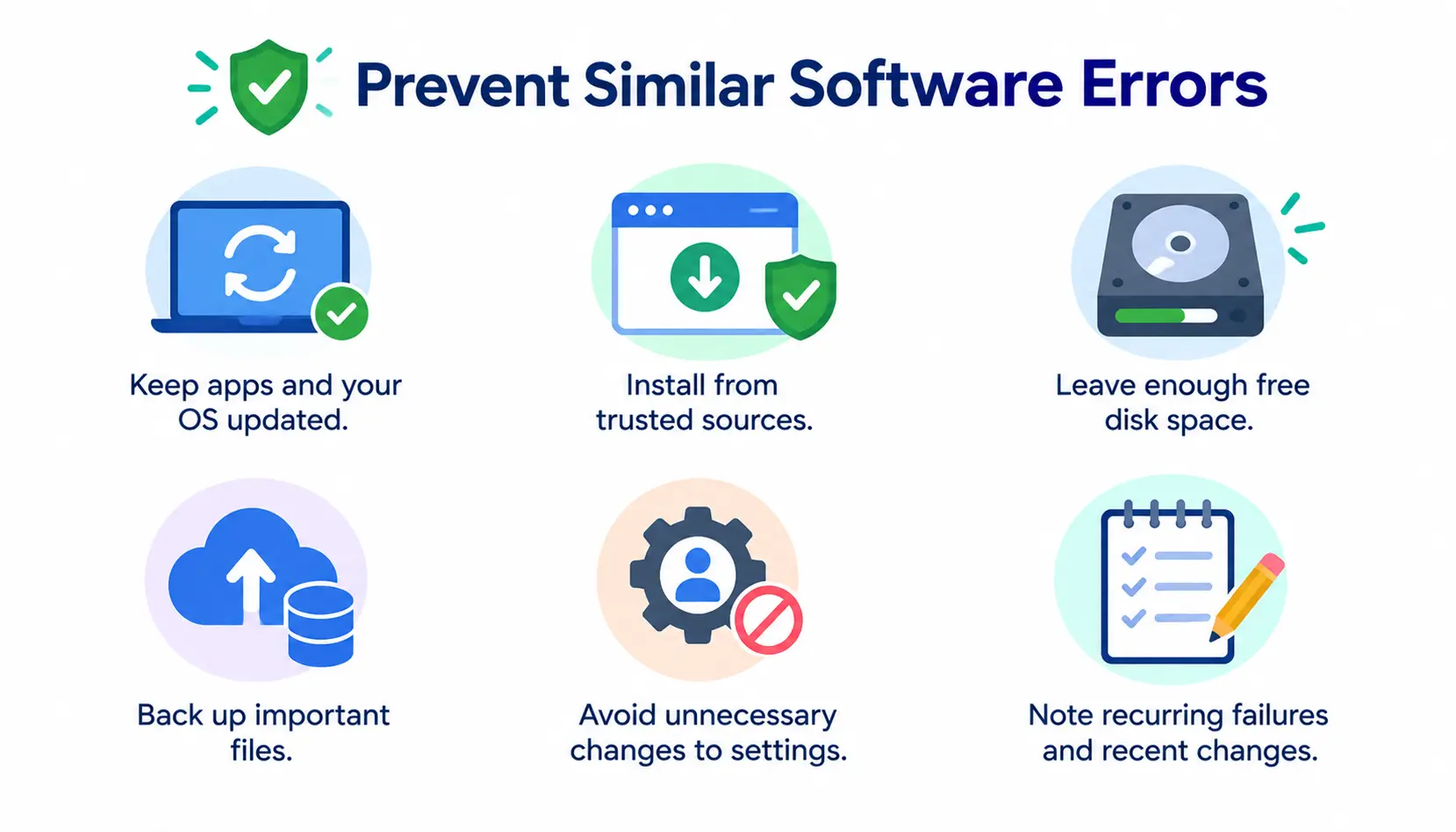
- Keep apps and your operating system updated.
- Install software only from trusted sources.
- Leave enough free disk space for updates.
- Back up important files regularly.
- Avoid unnecessary changes to settings and permissions.
- Keep a short note of recurring failures and recent system changes.
The last habit is underrated. A simple list of dates and changes can reveal a pattern that logs alone do not.
Frequently Asked Questions About Error RCSDASSK
1. What does error RCSDASSK mean?
No reliable documentation confirms its meaning. It may be a custom identifier from one app or a message from a web page. Find the app that showed it and check that vendor’s support resources.
2. Is RCSDASSK an official Windows error code?
We could not verify that it is. Official Microsoft documentation we reviewed does not list it. Check Microsoft’s support site and your app’s documentation to be sure.
3. How do I fix the error RCSDASSK?
First identify which app or process produced it. Then work through safe steps in order: restart the app, restart the device, check your connection and login, update software, and repair or reinstall the app if needed. Use SFC and DISM only on Windows when system-file damage is likely.
4. Is RCSDASSK a virus?
No evidence shows that it is. Fake alerts in browsers can display made-up codes, though. If the message pushes you to call a number or install a tool, close it and do not follow its instructions.
5. Can restarting my device fix RCSDASSK?
Sometimes. A restart clears temporary glitches and completes pending updates. If the error returns, move on to diagnosis and the later fixes.
6. Should I download an RCSDASSK repair tool?
No. No trusted tool exists for this specific code. Downloads that claim to fix it are a common way to spread unwanted software. Stick to built-in tools and official vendor downloads.
7. Can this error occur on macOS or Linux?
It could, if an app on those systems displays it. The code is not tied to Windows in any verified way. Use the platform-specific steps above, and do not copy commands from one system to another.
8. What should I do if none of the fixes work?
Contact the developer of the affected app. Send the full error text, screenshot, app and OS versions, timestamp, relevant logs with private data removed, and the steps you tried.
Conclusion
The honest truth about the error RCSDASSK is that nobody can verify its meaning from public, official sources. Be wary of any page that claims otherwise with total confidence.
What works is a calm process. Record the message. Find the app behind it. Check recent changes and logs. Then try the safe fixes in order, and ask the developer if the problem stays.
If you remember one thing, make it this: the code tells you less than the context around it. Where it appeared, what changed, and which app was running will get you to an answer faster than any guess about what the letters mean.