


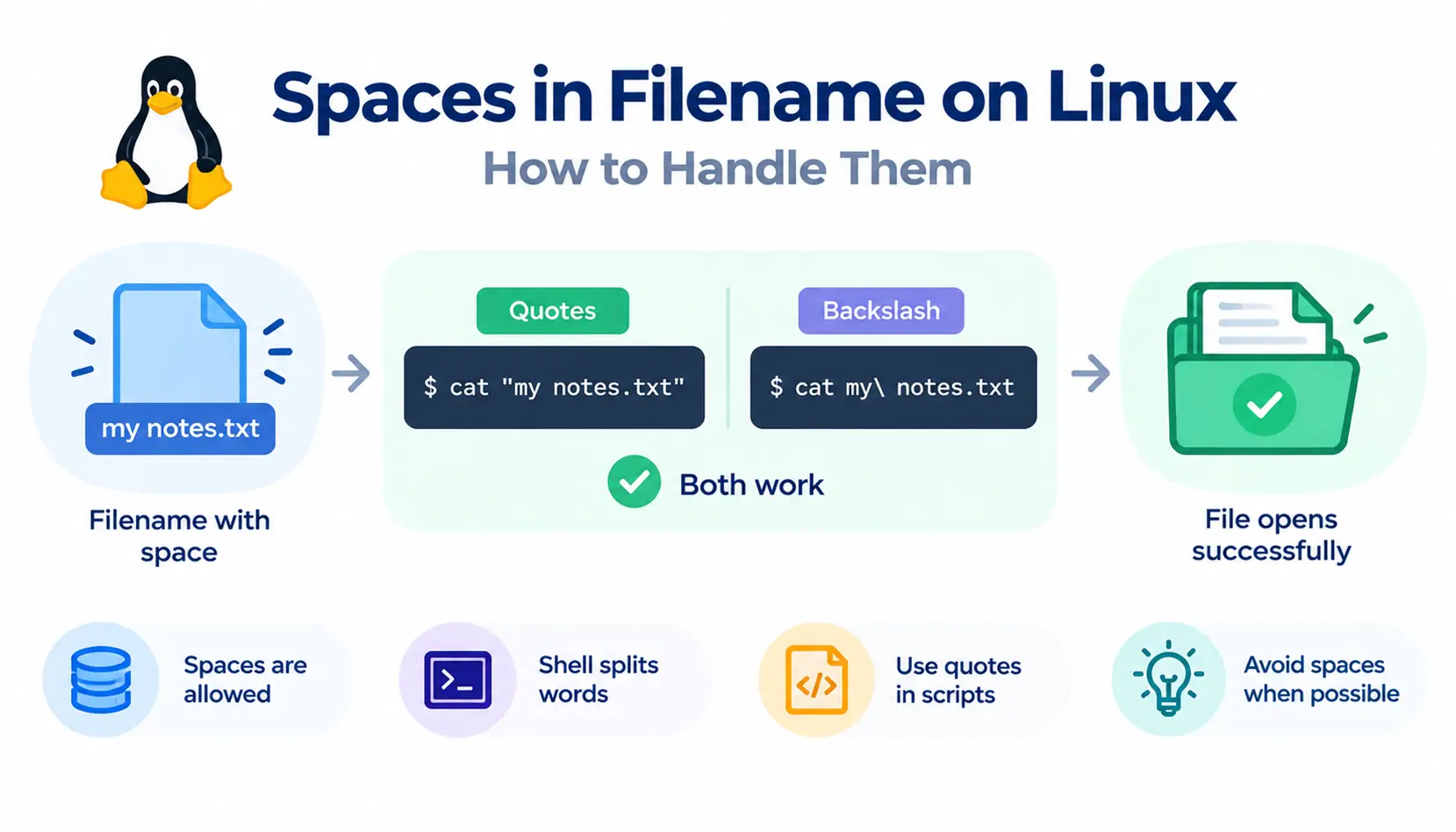
To handle a space in a filename on Linux, wrap the name in quotes or put a backslash before each space. For example, cat “my notes.txt” and cat my\ notes.txt both open a file called my notes.txt. Without quotes, the shell treats each word as a separate file.
Linux has no problem with spaces in filenames. The filesystem stores them just fine. The trouble starts in the shell, which splits what you type into separate words before the command ever runs.
This guide shows you how to work with spaces in filenames on Linux, step by step. You will also learn why the problem happens, how to avoid it in Bash scripts, and when it makes sense to skip spaces altogether.
How to Handle Spaces in Linux Filenames
There are four reliable ways to handle a filename with spaces in Linux: single quotes, double quotes, backslash escapes, and tab completion. Quotes are the safest default. Each method tells the shell to keep the name together as one argument.
Here is the same file opened four ways:
cat ‘quarterly report.txt’
cat “quarterly report.txt”
cat quarterly\ report.txt
cat quar<Tab>
Use Single Quotes Around the Filename
Single quotes are the strictest option. Everything inside them is taken literally. The shell does not expand variables, wildcards, or special characters.
ls -l ‘Project Plan 2026.txt’
Use single quotes when the name is fixed and you want no surprises. The one limit is that you cannot put a single quote inside single quotes. If your filename contains an apostrophe, switch to double quotes.
Use Double Quotes Around the Filename
Double quotes also keep the name together, but the shell still expands variables like $HOME and $file inside them.
cat “$HOME/Meeting Notes/april summary.txt”
This makes double quotes the usual choice when a path includes a variable. They also work for names with apostrophes, such as “Sam’s notes.txt”.
Escape Spaces With Backslashes
A backslash tells the shell to treat the next character literally. Put one before every space.
cat Meeting\ Notes/april\ summary.txt
This is handy for short names you type once. It gets hard to read on long paths, so most people switch to quotes there.
Use Tab Completion to Enter Filenames
Tab completion is the easiest method in an interactive terminal. Type the first few letters of the name and press Tab. The shell finishes the name and adds the backslashes for you.
cd Meet<Tab>
# becomes: cd Meeting\ Notes/
If several names match, press Tab twice to see the options. This also helps you avoid typos in long names.
Why Do Spaces Cause Problems in Linux Commands?
Spaces cause problems because the shell uses them to separate arguments. A filename with a space looks like two or more names unless you tell the shell otherwise. The command itself never sees the space as part of the name.
How the Shell Splits Command Arguments
When you press Enter, the shell breaks your line into words. A space or tab marks the end of one word and the start of the next. It then passes those words to the command as a list of arguments.
This is why ls is happy with ls one.txt two.txt. You gave it two files. The shell has no idea you meant one name with a space in it. The GNU Bash manual’s section on quoting explains how quotes and escapes remove special meaning from characters.
What Happens When You Leave a Filename Unquoted?
The command receives pieces of your filename as separate arguments. Compare these two commands for a file named my notes.txt:
# Incorrect
cat my notes.txt
# cat: my: No such file or directory
# cat: notes.txt: No such file or directory
# Correct
cat “my notes.txt”
The first command asks cat to read two files, my and notes.txt. Neither exists, so you get two errors. The second command passes one argument, and it works.
Are Spaces Actually Allowed in Linux Filenames?
Yes. On common Linux filesystems such as ext4, a filename can contain any byte except the forward slash (/) and the null character. Spaces are fine. So are tabs, and even newlines, though you should avoid those.
So the filesystem allows spaces. The shell is the part that needs help. Keep that split in mind and most of the confusion goes away.
How to Work With Files and Directories That Contain Spaces
The same rule applies to every command: quote the name, and the command gets one argument. The examples below use a file called monthly budget.txt and a folder called Tax Documents.
Open or Read a File With Spaces
cat “monthly budget.txt”
less “monthly budget.txt”
nano “monthly budget.txt”
The same quoting works for head, tail, grep, and any editor you launch from the terminal.
List Files and Navigate Directories With Spaces
ls -l “Tax Documents”
cd “Tax Documents”
If you want to use ~ for your home folder, keep it outside the quotes:
cd ~/”Tax Documents”
A tilde inside quotes is not expanded. That means cd “~/Tax Documents” fails with a “No such file or directory” error. Using “$HOME/Tax Documents” also works.
Create Files and Folders With Spaces
touch “meeting agenda.txt”
mkdir “Client Reports”
mkdir -p “Client Reports/Q1 2026”
Without the quotes, mkdir Client Reports would create two folders, one named Client and one named Reports. This is a common first-time mistake.
Copy Files With Spaces Using cp
Quote both the source and the destination if either contains a space.
cp “monthly budget.txt” “budget backup.txt”
cp “monthly budget.txt” “Tax Documents/”
cp -r “Tax Documents” “Tax Documents Backup”
Use -r when you copy a folder. Without it, cp skips directories.
Move or Rename Files With Spaces Using mv
Linux uses mv for both moving and renaming.
mv “monthly budget.txt” “budget 2026.txt”
mv “budget 2026.txt” “Tax Documents/”
The first command renames a file. The second moves it into a folder. If the destination already exists, mv overwrites it without asking. Add -i if you want a prompt first.
Delete Files With Spaces Safely
Warning: Deleting with rm is permanent. There is no trash can. An unquoted space can make rm delete the wrong files. Always run ls with the same quoted name first, and consider using rm -i to confirm each deletion.
ls -l “old draft.txt”
rm -i “old draft.txt”
To remove a folder and everything in it, use rm -r. Check the name twice before you press Enter.
rm -ri “Old Reports”
Here is why this matters. Suppose you type rm Old Reports by mistake. The shell passes two names to rm: Old and Reports. If a file called Reports exists in that folder, it gets deleted. Quotes prevent that.
How to Handle Spaces in Bash Scripts
In a script, the main rule is simple: quote every variable that holds a filename. Scripts run without you watching, so one missed quote can quietly break a whole job. This is one of the most common bugs in shell scripts. Learning essential digital skills can also help beginners build confidence with everyday computer tasks and basic technical troubleshooting.
Quote Variables That Contain Filenames
#!/bin/bash
file=”annual report.txt”
# Incorrect: the shell splits the value into two words
wc -l file#Correctwc-l”file”
When a variable is not quoted, the shell splits its value on whitespace. It also expands wildcard characters inside the value. Quoting stops both.
Tools like ShellCheck catch missing quotes automatically, and it is worth running on any script you plan to keep.
Use Quoted Paths in Loops and Conditions
Loop over a wildcard pattern, not over the output of ls. Parsing ls output breaks on spaces.
#!/bin/bash
for f in ./*.txt; do
[ -f “$f” ] || continue
echo “Processing: f”wc-l”f”
done
The [ -f “$f” ] || continue line skips the loop if no files match the pattern. Quotes also matter inside tests:
if [ -e “$f” ]; then
echo “File exists”
fi
In Bash, the [[ … ]] form is a bit more forgiving about splitting. Still, quoting is the habit worth keeping.
Process Multiple Files Safely With find and xargs
When you need to search through folders, find is the right tool. You can run a command on each result with -exec:
find . -name ‘*.log’ -exec wc -l {} +
If you prefer to pipe results into xargs, use null-delimited input:
find . -name ‘*.log’ -print0 | xargs -0 wc -l
The -print0 option ends each name with a null character. The -0 option tells xargs to expect that. Spaces inside names no longer matter.
To read results in a while loop, use the same idea:
while IFS= read -r -d ” f; do
echo “Found: $f”
done < <(find . -name ‘*.log’ -print0)
Why Newline-Separated Filenames Can Be Unsafe
Many commands print one filename per line. That works until a filename contains a newline, which Linux allows. Then one file looks like two.
The null character is different. It can never appear in a Linux filename, so it is a safe separator. That is why null-delimited input is the dependable choice for scripts. The Bash community explains this and many related traps on the BashPitfalls page.
Single Quotes vs Double Quotes vs Backslashes
All three methods keep a filename together. They differ in what the shell still interprets.
| Method | Syntax | Behavior | Best use case |
| Single quotes | ‘my file.txt’ | Everything is literal. No variable or wildcard expansion. | Fixed names typed by hand |
| Double quotes | “my file.txt” | Spaces are kept. Variables like $HOME still expand. | Paths with variables, and all script code |
| Backslash | my\ file.txt | Escapes one character at a time. | Short names typed once |
A quick rule: use double quotes in scripts, single quotes when you want everything literal, and backslashes only for short interactive commands.
Common Errors When Using Filenames With Spaces
Most errors come from one missing quote. Here are the four you will see most often, with the cause and the fix. For other operating system and software issues, explore these technology troubleshooting guides for additional troubleshooting guidance.
No Such File or Directory
Cause: The shell split the name into pieces, so the command looked for files that do not exist.
cd Tax Documents
# bash: cd: too many arguments (in some shells: No such file or directory)
cd “Tax Documents”
Why the fix works: The quotes pass one argument, so the command finds the real folder. The exact wording of the error depends on the command and shell.
Too Many Arguments or Incorrect Command Output
Cause: An extra argument changes what the command thinks you asked for.
cp monthly budget.txt backup.txt
# cp: target ‘backup.txt’ is not a directory
cp “monthly budget.txt” backup.txt
Why the fix works: With three unquoted words, cp assumes the last one is a destination folder for the first two. Quoting restores the intended two arguments.
Problems Caused by Unquoted Variables
Cause: The variable value was split on spaces when it expanded.
file=”my notes.txt”
cat file#cat:my:Nosuchfileordirectory#cat:notes.txt:Nosuchfileordirectorycat”file”
Why the fix works: Double quotes stop the shell from splitting the value. This is the most common cause of script bugs with filenames.
Special Characters Beyond Spaces
Spaces are not the only troublemakers. Characters such as &, ;, (, ), $, *, ?, !, and # all have special meaning in the shell. Quoting handles most of them.
ls -l “Tom & Jerry (final).txt”
Filenames that start with a dash are a separate problem. Commands may read them as options. Add — to mark the end of options, or prefix the name with ./:
rm — “-draft.txt”
rm ./”-draft.txt”
Should You Avoid Spaces in Linux Filenames?
Not always. Spaces are legal, and they are normal for personal documents. Whether you should avoid them depends on how the files get used.
When Spaces Are Perfectly Fine
Spaces are fine for files you open in a file manager or a desktop app. Names like Holiday Photos or Resume 2026.pdf read well, and you rarely type them in a terminal. If you do, tab completion handles it.
When Underscores or Hyphens Are More Convenient
If you often work in the terminal, names such as monthly_budget.txt or monthly-budget.txt save you from quoting. They are shorter to type and safer to paste into commands. Pick one style and stick with it. For text-processing tasks where you need to clean up extra spaces, you can also use this remove spaces from text tool.
Filename Conventions for Scripts, Shared Projects, and Automation
For code repositories, build systems, and anything that other people or tools will process, avoid spaces. It cuts the risk of quoting bugs. Many teams also keep names lowercase and avoid special characters.
However, do not rename files just to dodge the issue if your scripts must handle files from other people. Write the scripts to cope with spaces anyway. Real-world folders rarely follow your conventions.

Frequently Asked Questions
1. How do you open a file with spaces in Linux?
Wrap the filename in quotes, such as cat “my file.txt”. You can also escape each space with a backslash or press Tab to autocomplete the name.
2. How do you escape a space in a filename?
Place a backslash before the space. For example, my\ file.txt tells the shell the space is part of the name. Tab completion adds these backslashes for you.
3. Can Linux filenames contain multiple spaces?
Yes. Linux keeps every space exactly as typed, so “my file.txt” is a valid name with three spaces. You must quote it to preserve them, because an unquoted version would be split into separate words.
4. How do you copy a file with spaces in its name?
Quote the source and the destination: cp “old name.txt” “new name.txt”. Use cp -r if you are copying a folder.
5. How do you rename a filename with spaces?
Use mv with quotes: mv “old name.txt” “new name.txt”. To swap spaces for underscores across many files, a short loop works, but test it on a copy first.
6. Do spaces work in Bash scripts?
Yes, as long as you quote variables and paths. Use “$file” instead of $file, loop over wildcards instead of ls output, and use -print0 with xargs -0 when piping from find.
7. Is it better to use underscores instead of spaces?
Often, yes, for terminal and script work. Underscores and hyphens remove the need for quoting. For everyday documents opened in a file manager, spaces are fine.
Conclusion
Spaces in a filename on Linux are not a filesystem problem. They are a shell problem, and quotes solve it. Use double quotes as your default, single quotes for fully literal names, and backslashes for quick one-offs.
In scripts, quote every variable and prefer null-delimited input when you pass filenames between commands. Do that consistently and you will avoid most filename bugs.
If you want to discuss real-world cases, communities such as linux4noobs on Reddit are a friendly place to ask questions. Try the commands above in a practice folder first, especially anything involving