

You open your Chromebook, click a link for a school project, and get a blank page or a warning. It’s frustrating, especially when the deadline is tomorrow.
If you want to unblock websites on a school Chromebook, the first step is knowing what is actually blocking the page. It could be the school network, a rule set by your school’s IT team, a simple browser setting, or a site that is just down.
This guide walks you through each cause and each fix. I won’t promise a trick that works every time, because none exists. Many school Chromebooks are locked down on purpose, and the right fix depends on the type of restriction.
Why Are Websites Blocked on School Chromebooks?
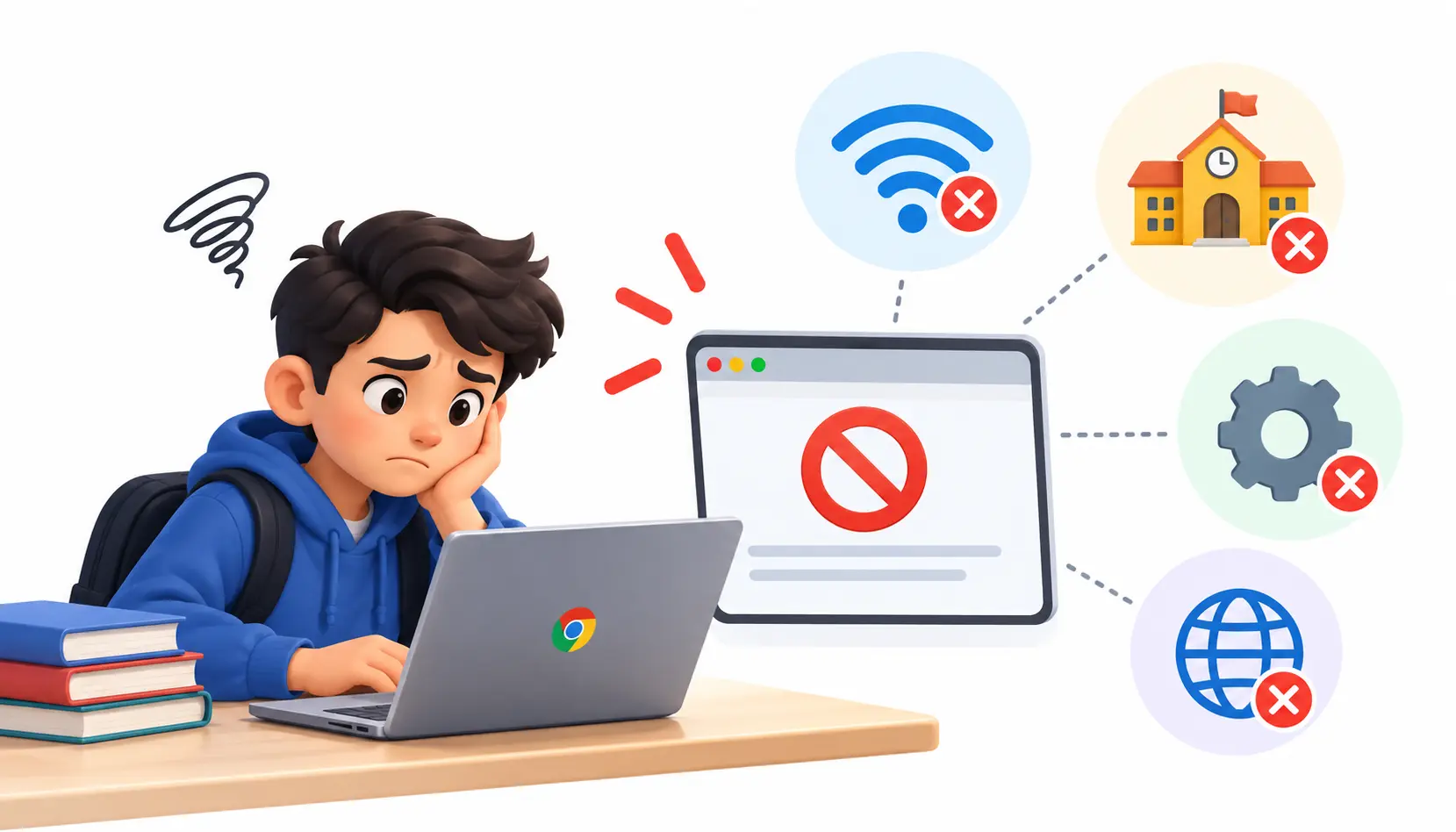
Schools block websites for a few reasons. They have legal duties around student safety, they want to limit distractions, and they need to protect devices from malware. Understanding which type of block you’re facing saves you a lot of wasted effort.
School Wi-Fi and Network Filtering
Most schools use a filter on their network. It checks each website request and blocks pages in categories like gaming, social media, or streaming. This is a form of content-control software.
Network filtering only applies while you’re on that network. A site that is blocked at school may open fine at home. That difference is a useful clue, and we’ll use it later.
Chromebook Administrator Restrictions
A Chromebook can be managed by an organization, much like a company laptop. Administrators use policies to block specific sites, limit which extensions can be installed, and control other settings on the device and the school account.
These rules follow the device or account, not the Wi-Fi. If your school set a URL block this way, the page may stay blocked on any network.
Browser Permissions and Website Errors
Not every failed page is a block. Sometimes Chrome simply isn’t allowed to run something the page needs, like pop-ups or JavaScript. Other times the site needs you to log in, or the site itself is down.
These problems look similar to a block but have easy fixes. That’s why it pays to check them first.
School Accounts and Parental Controls
School-managed accounts are controlled by the school, usually through Google Workspace for Education. Parent-managed accounts are different. Parents set those up with Google Family Link to manage a child’s own account.
If a student uses a school account on a school device, Family Link is not what blocks sites. The school’s settings do. Knowing who controls the account tells you who can change the rule.
How to Identify What Is Blocking a Website
Think of this as a short detective job. Four quick checks usually point to the cause.
Check Whether the Chromebook Is Managed
Type chrome://management into the address bar and press Enter. If the page says your browser is managed, an organization (your school) is applying policies. If it says it isn’t managed, the block is more likely coming from the network or a browser setting.
You may also see a “Managed by your organization” note in the Chrome menu or in the Chromebook’s settings. Either way, a managed device means some rules are set outside your control.
Understand the Error Message
The error text tells you a lot. Here are the common ones in plain English:
- “Your organization has blocked access to this page” (ERR_BLOCKED_BY_ADMINISTRATOR): a policy on your device or account blocked the site. Ask IT.
- “Access denied” or a school-branded block page: the network filter stopped the request.
- Connection timed out: the site didn’t respond. It could be a filter silently dropping the request, or the site may be down.
- “Site can’t be reached” or a name-not-found error: the address may be mistyped, the site may be offline, or a DNS-level filter may be involved.
Take a screenshot of the message. You’ll want it if you contact IT. If you suspect the address is incorrect, use a URL parser to analyze a website URL and check its domain and path before troubleshooting further.
Determine Whether the Problem Is Network-Specific
If your school’s rules allow it, try the same site on another approved connection, such as your home Wi-Fi. If the site opens there but not at school, the school network is the cause.
If the site is blocked everywhere, the restriction is likely on the device or account. Always check your school’s acceptable-use policy first, since some schools restrict how school devices may be used off campus.
Check Whether the Website Is Actually Down
Before you troubleshoot your Chromebook, check whether the site works for anyone else. Try opening it on your phone using mobile data, or ask a classmate. You can also use a public outage checker.
If the site fails for everyone, there’s nothing to fix on your end. Just wait or use another source.
Quick diagnostic checklist:
- Does the site open on another device or another person’s connection? If no, the site is probably down.
- Does chrome://management show a managed browser? If yes, a school policy may be involved.
- Does the error mention your organization or administrator? If yes, ask IT for access.
- Does the site open on another approved network? If yes, the school network filter is the cause.
- Does the page load but features fail? If yes, check Chrome site permissions.
How to Unblock Websites on a School Chromebook: 7 Methods
These methods are ordered from most reliable to least reliable. Start at the top. Your goal is to get legitimate schoolwork done, not to break the rules in your school’s acceptable-use policy.
1. Request Access From Your Teacher or School IT Administrator
This is the method that works most often. If a website is blocked by policy, only someone with administrator rights can lift the block for you.
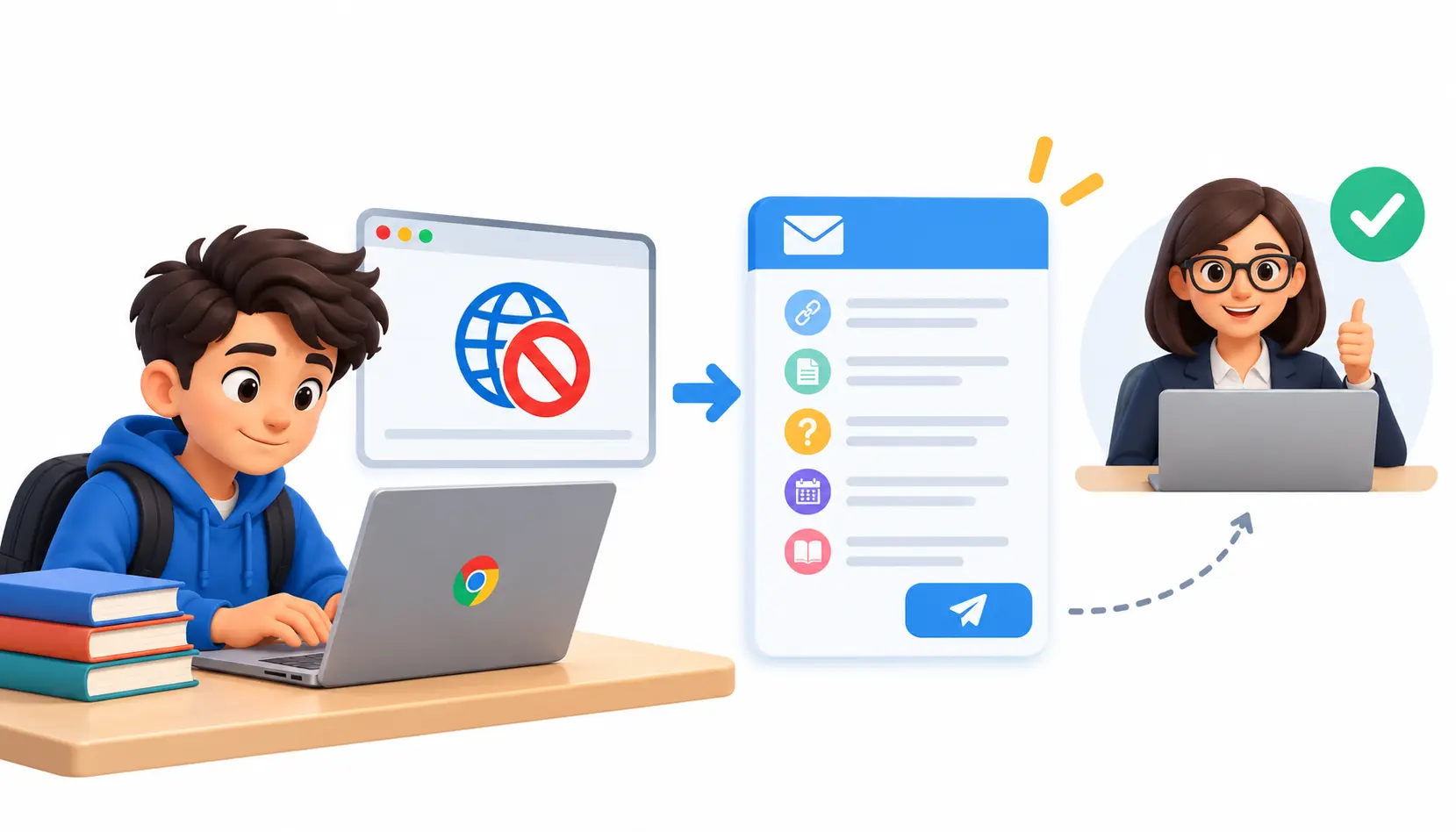
IT teams get these requests all the time. A clear, polite request tied to an assignment is easy to approve. Include the website address, the assignment or project, why you need the site, and your deadline. A ready-to-use message appears later in this article.
2. Fix Chrome Site Permissions
Site permissions control what a website is allowed to do in Chrome. They are not the same as a block. A site can load but look broken if cookies, pop-ups, or JavaScript are turned off.
To check, click the icon at the left of the address bar, then choose Site settings. Look at the cookies, JavaScript, and pop-ups settings for that site, and allow what the page needs. You can also open Chrome’s settings and go to Privacy and security and then Site settings.
One important limit: changing permissions will not override a URL block set by an administrator. If your school locked those settings, you may not be able to change them at all.
3. Test the Website on Another Approved Network
This is mostly a diagnostic step. If a site opens on your home connection or a permitted mobile hotspot, you’ve confirmed that the school network is the problem. That is useful information to share with IT.
If the site is still blocked on the other network, the restriction lives on the Chromebook or your signed-in account. Switching networks won’t help in that case. Also keep in mind that some schools set rules about using school devices on other networks, and hotspots use your own data.
4. Use a VPN Where Permitted
A virtual private network, or VPN, sends your internet traffic through an encrypted connection to another server. Websites then see that server’s address instead of yours.
On a personal Chromebook, a VPN can be a reasonable privacy tool. On a school-managed Chromebook, it often isn’t available. Administrators can block VPN extensions and Android apps, and they can limit network settings. Even if one connects, a device policy can still block the site, because the rule lives on the Chromebook itself.
Schools also commonly treat VPN use as a violation of their acceptable-use policy. Check the policy before you try, or ask IT whether a VPN is allowed for a specific purpose.
5. Understand the Limitations of Web Proxies
A proxy server acts as a middleman. You ask the proxy for a page, and the proxy fetches it for you. Web proxy sites do this inside your browser, so you don’t install anything.
That sounds handy, but the problems are real. Many proxies break logins and videos, and they load pages slowly. Worse, the operator of the proxy can see what you do. Free proxy sites often carry ads, trackers, or worse.
For these reasons, I don’t recommend unknown proxy sites as a default fix. Never enter a school password or any account login on one.
6. Try Google Translate for Accessible Page Content
Sometimes a plain-text page can be read through Google Translate’s page translation. The idea is that Translate fetches the page and shows it to you in another language.
Treat this as a long shot. It won’t work for pages that need a login, for interactive tools, or for services your school blocks. Many schools block Translate’s page-viewing feature too. Don’t count on it, and it can’t be used for anything the policy forbids.
7. Use an Approved Alternative Website or Resource
Sometimes the fastest fix is a different source. Ask your school librarian about approved databases. Many schools subscribe to research tools that are already unblocked and give better sources than a random website.
Alternatives make the most sense when your deadline is close and an access request could take a day or two. Public library apps, textbooks, and downloaded or offline materials can also fill the gap.
Which Website-Unblocking Method Should You Choose?
Use this table to match your situation to the right approach.
| Method | Installation needed? | Best use case |
| Request administrator access | No | School-policy restrictions |
| Fix site permissions | No | Browser permission problems |
| Test another approved network | No new software | Diagnosing network filtering |
| VPN | Depends on the service | Permitted network-level use |
| Web proxy | Usually no | Limited browsing where allowed |
| Google Translate | No | Reading some accessible text |
| Approved alternative resources | Depends on the resource | Research and coursework |
This table is a troubleshooting guide, not a guarantee. A method that works on one Chromebook may fail on another, because every school sets up its devices differently.
Why Some Methods Do Not Work on Managed Chromebooks
People often waste hours on tricks that can’t work for their situation. Here’s why the usual ideas fail on managed devices.
Why a VPN Extension May Be Disabled
Administrators can control which extensions and apps are allowed. They can block installs from the Chrome Web Store entirely, or allow only a short approved list. If you see a message that the extension is blocked by your administrator, that’s a policy, not a bug.
Why Changing DNS May Not Solve the Problem
The Domain Name System (DNS) turns website names into numeric addresses. Some filters work at that level, so people assume a different DNS server fixes everything.
It doesn’t, for two reasons. Administrators can lock network and DNS settings on a managed device. And many filters work in other ways, such as checking the full web address or applying a Chromebook policy, which a DNS change doesn’t touch.
Why Opening a Website by Its IP Address May Fail
Typing a site’s numeric address instead of its name usually fails. Secure sites use HTTPS, and their certificates are issued for domain names, not bare IP addresses, so Chrome shows a certificate warning.
Also, one server often hosts many websites. It uses the domain name in your request to decide which site to show. Without the name, you may get the wrong page or an error. And filters that work by domain name can still apply.
Why Switching Networks May Not Help
Network filtering and device policies are two different layers. Changing networks only helps with the first one. If the block is set on the Chromebook or your school account, it travels with you to every Wi-Fi connection.
That’s why the diagnostic step matters. It tells you which layer you’re dealing with before you try anything else.
Is It Safe to Unblock Websites on a School Chromebook?
It can be, if you stay within the rules. Risky shortcuts create real problems, from malware to disciplinary action.
Can Your School See Your Browsing Activity?
It depends. What your school can see depends on its monitoring setup, how the device is managed, the network controls in place, and the type of traffic. On a school account and device, you should assume the school can see more than you think.
A VPN does not guarantee privacy from the school. The device itself may have monitoring tools, and the school can see that a VPN connection exists even if it can’t read the contents. The safest habit is to treat school devices as school property and keep personal activity on personal devices.
Are Free VPNs and Proxy Websites Safe?
Often they are not. Free services have to make money somehow, and some do it by collecting and selling your browsing data. Others push misleading extensions, suspicious downloads, or ads that lead to scams.
The biggest risk is typing credentials into a third-party site. If a proxy captures your login, someone else now has your account. Avoid entering any passwords through them, and stay away from tools you can’t verify.
Can You Get in Trouble for Unblocking Websites?
Possibly. Consequences vary by school and by what you did. Using a VPN to reach a game might lead to a warning at one school and a device restriction at another.
Read your school’s acceptable-use policy so you know the rules. If you have a real educational need, ask for permission instead of working around the filter. A documented request protects you.
How to Request Access to a Blocked Website for Schoolwork
A good request makes it easy for the other person to say yes.
What Information Should You Include?
- The exact website address (URL)
- The assignment or research requirement
- Why you need this particular site
- How long you need access
- Any alternative resources you’ve already tried
Send the request early. IT teams often handle many tickets, so a last-minute message may not be answered in time.
Sample Message to Your Teacher or IT Team
Subject: Request to unblock a website for a class assignment
Hello [Name],
I’m working on a [subject] project that’s due on [date]. I need to use [website URL] for [specific reason, for example: primary-source documents on the topic]. The page is currently blocked on my school Chromebook.
I checked our library databases, but they don’t have the same material. Could you please allow access to this site, or let me know if there’s an approved alternative? I only need it until [date].
Thank you for your help, [Your name, grade, and class]
A teacher can often forward this to IT for you. Keep the tone polite and specific. If your school uses a message-length limit, you can check sentence and character counts before sending your request.
Frequently Asked Questions
1. How do I unblock websites on a school Chromebook without a VPN?
Start by finding the cause. Check chrome://management, read the error message, and test the site on another approved network. Then fix browser permissions if that’s the issue, or ask your teacher or IT administrator for access. Approved alternative resources are the safest backup.
2. Can a VPN work on a school-managed Chromebook?
Sometimes, but often not. Administrators can block VPN extensions, apps, and network changes. Even a working VPN may not override a device policy. Many schools also prohibit VPNs in their acceptable-use policy, so check before trying.
3. How do I unblock a website blocked by an administrator?
You can’t do it yourself. A block set by an administrator is a policy, and only an administrator can change it. Send a polite request with the URL, the assignment, and the reason you need the site.
4. Can my school see what websites I visit?
Often, yes. Visibility depends on how the school monitors the network and manages the device. On a school-issued Chromebook or school account, assume your activity may be visible, and don’t rely on a VPN to hide it.
5. Does a mobile hotspot work on a school Chromebook?
It can help if the network filter is the problem. It won’t help if the restriction is set on the Chromebook or your school account. Check your school’s rules first, since some limit off-campus use, and remember hotspots use your own data.
6. Can changing DNS settings unblock websites?
Usually not on a managed Chromebook. Administrators can lock DNS and network settings, and many filters work in ways a DNS change doesn’t affect. On an unmanaged device, a DNS change may help with simple DNS-based blocks.
7. Why can’t I install extensions from the Chrome Web Store?
Your administrator has most likely restricted extension installs. This is a common setting on school devices. If you need a particular extension for class, ask IT whether it can be approved.
8. Does Google Translate work for blocked websites?
Sometimes for simple text pages, but it’s unreliable. It struggles with logins and interactive pages, and many schools block it too. Don’t treat it as a dependable workaround.
9. How do I unblock YouTube on a school Chromebook?
Schools often restrict YouTube through account settings, while allowing specific videos or channels. The best route is to ask your teacher to approve or share the exact video you need for class. That’s quicker and safer than trying to bypass the restriction.
10. What should I do if a website is blocked even at home?
That points to a device or account policy rather than the school network. Check chrome://management and the error message. Then contact your IT administrator, since only they can change a policy that follows the Chromebook everywhere.
Conclusion
The best way to unblock websites on a school Chromebook is to work out why the page is blocked before you try any fix. A quick check of chrome://management, the error message, and a second approved network will tell you most of what you need.
From there, match the fix to the problem. Browser permissions fix browser problems, and administrator requests fix policy blocks. VPNs and proxies are unreliable on managed devices, and they carry real privacy and rule-breaking risks.
When in doubt, ask. A short, polite message with a clear reason solves more blocked-site problems than any workaround. If you want to compare notes with other users, communities like chromeos discuss ChromeOS questions, though what works for one school may not apply to yours. For official ChromeOS help, see the Chromebook Help Center.