


Tagging someone on Instagram is a way to give credit, highlight friends, work with creators or make your content more visible. When you share vacation photos, post a Reel with collaborators. Mention a business in your Story knowing how to tag people correctly helps your posts reach the right audience and keeps everyone connected.
Many users still have questions about tagging like why they can’t tag someone if they can tag someone after posting or what’s the difference between a tag and a mention.
The answers to these questions depend on where you’re posting the other person’s privacy settings and the latest Instagram features. This guide will cover every place where tagging works on Instagram including posts, Stories, Reels and more.
You will learn how tagging differs from mentions of what happens when someone is tagged, how to manage tag privacy settings and how to fix tagging problems. A tag links a photo, video or Story directly to another Instagram account.
When someone is tagged they get a notification. If their privacy settings allow it the content appears in their Tagged section on their profile.Unlike a mention, a tag is attached to a part of your content.
This allows viewers to tap on the image or video and see exactly who has been tagged. Tagging is useful for identifying people, crediting collaborators and improving the context of your posts on Instagram.
It helps to give credit to people, highlight friends and work with creators.Tagging someone on Instagram makes your content more visible.
Tag vs Mention vs Hashtag

Although tags, mentions, and hashtags may seem similar, they each serve a different purpose on Instagram. Understanding the difference helps you use the right feature for the right situation and improves how your content is discovered and shared.
1. Tag: So you want to know about tags on Instagram. A tag is something that you attach to a photo or a video or even a Story. This tag is like a link that connects your content to someone’s Instagram account.
When you tag someone in a post their name shows up as a label on the picture or video. This means that people who look at your post can click on that label and see who you are talking about. The person you tag will also get a notification about it.
Depending on how they have set up their account your post might show up in a special section of their profile called Tagged. People use tags for a lot of things like saying who is in a photo giving credit to someone who helped them or mentioning a brand or business.
Tags are really useful on Instagram because they help you connect with people and accounts.
2. Mention: When you want to mention someone you type @username in a caption comment, Story text or Reel caption. The username shows up as text that you can click on. It takes you to the person’s profile.
This is really useful for starting conversations with Instagram users. You can use mentions to give someone credit for something in your caption. Mentions are also great for replying to users in comments.
You can use them to notify someone about something without putting a tag right on the picture or video. Mentions are very helpful for talking to people on Instagram.
3. Hashtag: A hashtag is created by typing # followed by a keyword or phrase, such as #TravelPhotography or #FoodLover. Unlike tags and mentions, hashtags don’t identify a person or account.
Instead, they categorize your content, making it easier for users interested in that topic to discover your posts through Instagram’s search and explore features. While hashtags can improve discoverability, they don’t notify anyone or link your content to a specific user’s profile.
In short, tags identify people in your content, mentions reference users in text, and hashtags organize content by topic. Using each feature correctly helps you communicate more effectively and maximize your content’s reach on Instagram.
When Should You Use Each?
So when you are posting a photo or video you should use a tag if you want to give credit to someone who’s in the photo or video. This way everyone knows that this person is in the picture.
On the other hand if you are talking about someone in a caption or comment but they are not in the actual image then you should use a mention.
If you want a lot of people to see your post then you should use a hashtag. This is because posts with hashtags show up when people search for topics. You can use a hashtag when you want your post to show up in topic-based searches like when people’re looking for something specific.
How to Tag Someone in an Instagram Photo Post
When you put someone’s name on your Instagram pictures, it is a way to show who your friends are, thank the people who helped you, give credit to companies, or let others know who is in your pictures. You can add these names before you share your picture, and if you forget, Instagram also lets you add or change them later. If you’re trying to build a stronger profile, it’s also worth optimizing your Instagram bio, since it’s often the first place people visit after tapping a tagged profile.
The people you tag will receive a notification. Depending on their privacy settings, the picture may also appear in the Tagged section of their Instagram profile, making it easier for others to discover their content directly from your post.
1.Before Publishing
Adding tags before you share your post is the quickest and easiest method.
- Open the Instagram app and tap the + icon to create a new post.
- Select the photo or multiple photos you want to upload.
- Apply any filters, edits, or adjustments if desired, then tap Next.
- On the caption screen, tap Tag People.
- Tap anywhere on the photo where the person appears.
- Type their Instagram username into the search box.
- Select the correct account from the search results.
- Repeat the process if you want to tag additional people.
- Tap Done, then tap Share to publish your post.
Once your post is live, tagged users will receive a notification, making it easy for them to view, interact with, or reshare your content if they choose.
2. Step-by-Step Instructions for Carousel Posts
When you share a bunch of photos on Instagram you can tag people in each picture. The tags do not go to every picture you have to do it for each one. First you pick the photos you want to share.
Then you tap Tag People. Then you look at each picture. Add tags where you need to. If the same person is in a lot of pictures you have to tag them in each picture. It takes an extra time to do this but it is worth it because people can see who is in the pictures no matter which one they are looking at.
3. Using Multiple Tags
Instagram is really good for pictures with a lot of people in them like when you’re with your family or team. You can tag people in one photo. To do this you just tap on the picture where each person then searches for their name on Instagram.
When you post something on Instagram you can tag a lot of people.. It is better to only tag people who are actually in the picture or who have something to do with what you are posting. If you tag many people or if you tag people who do not have anything to do with your post it can look like you are sending out spam. This can be annoying to people who use Instagram. So it is an idea to use tags in a thoughtful way to say who is in the picture to give credit to people who should get it and to help people understand what your post is about.
You should use tags to identify people in the picture and to help your audience understand your Instagram post, like an Instagram photo with your family or an Instagram photo, with your team.
How to Tag Someone After Posting
So you forgot to tag someone on your Instagram post. Do not worry you do not have to delete the Instagram post and upload it again. Instagram lets you edit your Instagram photo posts and your Instagram carousel posts after you have published them. You can add tags to your Instagram post or you can remove tags from your Instagram post or you can fix mistakes on your Instagram post. This is really useful if you forgot to tag a friend on your Instagram post or a collaborator on your Instagram post or a photographer on your Instagram post or a business on your Instagram post when you first shared your Instagram post.
1. Edit an Existing Post
Follow these steps to add a tag to an already published Instagram post:
- Open the Instagram app and go to your profile.
- Tap the post you want to edit.
- Tap the three-dot menu in the upper-right corner of the post.
- Select Edit.
- Tap Tag People.
- Tap the area of the photo where you want the tag to appear.
- Search for the person’s Instagram username.
- Select the correct account from the search results.
- Repeat the process if you want to add more tags.
You can also use the Edit screen to remove incorrect tags or reposition existing ones if needed.
2. Save Your Changes
After you. Remove tags, tap Done. Then tap Done, Save or the checkmark. This depends on your device and Instagram version. This confirms your changes. The updated tags take effect away. The person you tagged will get a notification. They will know they were tagged in your post. This is the same as if you had tagged them when you first posted.
If the tagged person has tag approval on the post may not show up in their Tagged section. This is until they approve the tag. You can edit tags on photo and carousel posts. Some things, like the media, can’t be changed after posting.
If you can’t tag someone, check the username. Make sure it’s correct. Also check their privacy settings. They may not allow others to tag them.
How to Tag Someone in an Instagram Story
Tagging someone in an Instagram Story is a simple way to notify friends, credit creators, promote a business, or collaborate with other users. Unlike regular posts, Stories don’t use tap-to-tag labels. Instead, Instagram lets you tag people by using the Mention sticker or by typing @username directly into your Story text. Both methods notify the tagged account and create a clickable link to their profile.
1. Using the Mention Sticker
The Mention sticker is the most common and visually noticeable way to tag someone in a Story.
Follow these steps:
- Open Instagram and swipe right or tap + to create a new Story.
- Capture a photo or video, or upload one from your gallery.
- Tap the Sticker icon at the top of the screen.
- Select the Mention sticker.
- Type the person’s Instagram username.
- Choose the correct account from the suggestions.
- Drag, resize, or rotate the sticker to place it anywhere on your Story.
- Share your Story.
When you publish the Story, the tagged person receives a notification and can tap the sticker to view or reshare your Story if Instagram allows it. This method is commonly used by creators, brands, and businesses to give proper credit and encourage engagement.
2. Typing @Username
You don’t have to use the Mention sticker if you prefer a cleaner design. Instagram also lets you tag someone by typing their username directly into Story text.
To do this:
- Open your Story and tap the Text (Aa) tool.
- Type @ followed by the person’s username.
- Select the correct account from the suggestions that appear.
- Customize the font, size, and color of the text before posting.
The username becomes a clickable mention, allowing viewers to visit the tagged person’s profile with a single tap. This method works well when you want the mention to blend naturally into your Story’s text rather than stand out as a separate sticker.
3. Hidden Mentions
Many creators use hidden mentions to keep their Stories visually clean while still giving credit or notifying another account.
One popular technique is to make the Mention sticker very small or place it behind another sticker, GIF, emoji, or image element so it isn’t immediately noticeable. You can also move it toward the edge of the Story where it doesn’t distract from the main content. Despite being difficult to see, the tagged account still receives a notification, and the mention remains active.
Hidden mentions are often used when:
- Crediting photographers, designers, or content creators.
- Tagging brands in promotional Stories without affecting the overall design.
- Keeping Stories minimal while still acknowledging collaborators.
- Maintaining a clean, professional aesthetic.
Avoid hiding mentions in a misleading or deceptive way. The best practice is to use hidden mentions only for design purposes while ensuring the tag remains relevant to the content and the person being tagged.
How to Tag Someone in Instagram Reels
Tagging people in Instagram Reels is a way to give credit to people you work with, feature your friends, mention brands or help your content get seen by more people. When you post a video of you and your friends dancing or you team up with another creator or you show off a product from a company adding tags helps viewers see who is in your Reel.
You can add tags to your Reel before you post it just like you do with Instagram posts.If you forget someone or need to make changes you can also edit the tags later.
1. Before Publishing
The easiest time to tag someone is while you’re preparing your Reel for sharing.
Follow these steps:
- Open Instagram and tap the + icon or swipe to create a new Reel.
- Record a new Reel or upload a video from your gallery.
- Edit your Reel by adding music, effects, text, or filters if desired.
- When you reach the sharing screen, tap Tag People.
- Search for the Instagram username of the person you want to tag.
- Select the correct account from the search results.
- Add your caption, location, hashtags, and any other details.
- Tap Share to publish your Reel.
Once the Reel is published, tagged users receive a notification that they’ve been tagged. Depending on their account settings, the Reel may also appear in the Tagged section of their profile after they approve the tag (if manual approval is enabled).
2. Editing Reel Tags
If you forget to tag someone before publishing, Instagram lets you edit your Reel afterward without having to delete and upload it again.
To update your Reel tags:
- Go to your profile and open the Reel you want to edit.
- Tap the three-dot menu in the upper-right corner.
- Select Edit.
- Tap Tag People.
- Add new tags, remove incorrect ones, or update existing tags.
- Tap Done, then save your changes.
The updated tags take effect immediately, and any newly tagged accounts receive a notification. This feature is especially helpful if you later decide to credit collaborators, tag a business partner, or add someone who was accidentally missed during the initial upload.
For the best results, tag only people who are genuinely featured in or connected to your Reel. Relevant tagging improves collaboration, encourages engagement, and helps viewers better understand the content without appearing spammy.
How to Mention Someone in Captions and Comments
Not every situation requires a visual tag on a photo or video. Sometimes, simply mentioning someone in your caption or comments is the better option. Instagram allows you to mention users by typing @ followed by their username, creating a clickable link to their profile. Unlike tags, mentions appear as text and don’t attach a person’s account directly to the image or video. If you’re trying to increase your reach, combining relevant mentions with other engagement strategies can help. You can also learn how to go viral on Instagram to understand how mentions, shares, and audience interactions contribute to greater visibility.
Mentions are commonly used to credit creators, thank collaborators, respond to followers, recommend businesses, or draw someone’s attention to a post without identifying them in the media itself.
1. Caption Mentions
Adding a mention in your caption is quick and works for photo posts, carousel posts, and Reels.
To mention someone:
- Create a new post or Reel as usual.
- Write your caption.
- Type @ followed by the person’s Instagram username.
- Select the correct account from the suggestions that appear.
- Publish your post.
The mentioned username becomes a clickable link that viewers can tap to visit the person’s profile. The mentioned account also receives a notification, making this an effective way to acknowledge collaborators, photographers, brands, or friends without placing a visual tag on the content.
Many creators use caption mentions to:
- Credit photographers, designers, or editors.
- Thank brands or sponsors.
- Recognize collaborators.
- Encourage followers to visit another account.
2. Comment Mentions
You can also mention people in the comments section of any Instagram post by using the same @username format.
Simply open the comments, type @ followed by the person’s username, choose the correct account from the suggestions, and post your comment.
Comment mentions are useful when you want to:
- Share a post with a friend by drawing their attention to it.
- Continue a conversation with another user.
- Reply directly to someone’s comment.
- Recommend a post, product, or account.
- Include multiple people in a discussion.
Like caption mentions, comment mentions create clickable profile links and notify the mentioned user. However, they do not add the post to the person’s Tagged section because mentions are text-based rather than visual identifiers.
In short, use tags when you want to identify someone in the content itself, and use mentions when you simply want to reference or notify someone through text.
How to Tag Multiple People
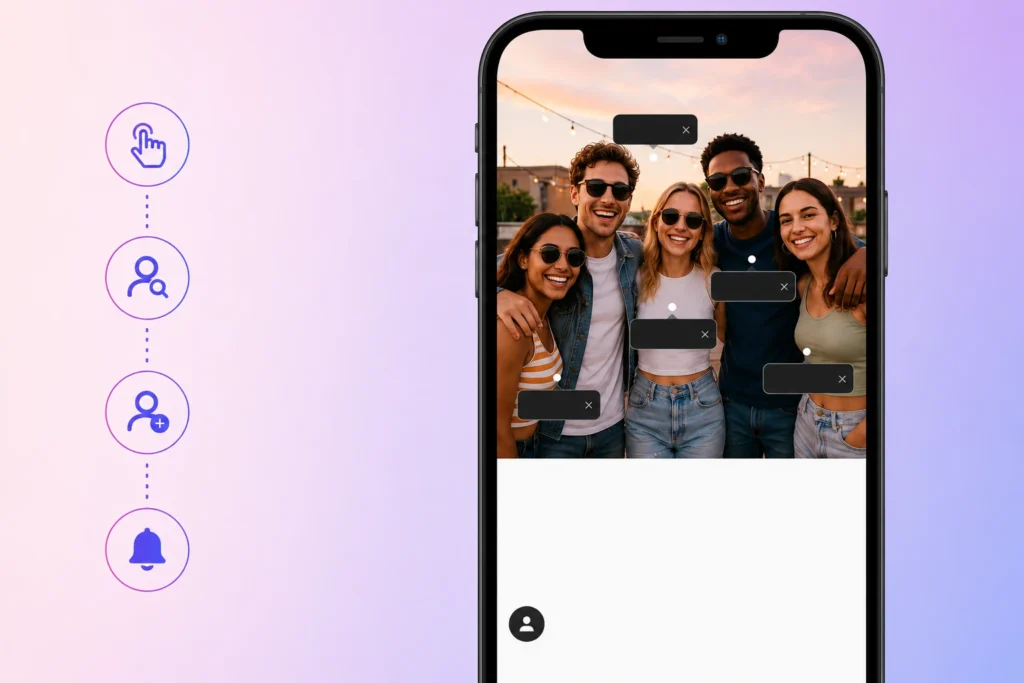
Instagram allows you to tag multiple people in a single post, making it easy to identify everyone featured in a group photo, team project, event, or collaboration. You can add several tags by tapping different areas of the image and selecting each person’s username. This helps viewers recognize everyone involved and ensures each tagged account receives a notification.
If your post includes many people, it’s important to use tags thoughtfully. Adding relevant tags improves the user experience, while excessive or unrelated tagging can make your content appear spammy.
Tag Limits
Instagram places a limit on the number of accounts you can tag in a single photo, video, or Reel. Although the limit is generous for most users, you’ll eventually reach a maximum if you’re tagging a very large group.
If you can’t tag everyone featured in your content, prioritize the people who are most relevant to the post. For example, you might tag close friends, collaborators, event organizers, or featured brands directly in the image, then mention additional people in the caption using @username. This ensures everyone receives proper credit without exceeding Instagram’s tagging limit.
If Instagram prevents you from adding more tags, it usually means you’ve reached the platform’s maximum or you’re trying to tag accounts that don’t allow tags because of their privacy settings.
Best Practices
Using tags responsibly helps keep your content authentic and encourages meaningful engagement.
Follow these best practices when tagging multiple people:
- Tag only people who actually appear in the photo or video.
- Tag collaborators, photographers, creators, or businesses that genuinely contributed to the content.
- Use mentions in your caption if you need to acknowledge additional people beyond the tagging limit.
- Double-check usernames to avoid tagging the wrong account.
- Respect other users’ privacy if they prefer not to be tagged.
Avoid tagging random celebrities, influencers, or popular brands simply to attract attention. Instagram considers excessive or irrelevant tagging to be spam-like behavior, which can reduce the quality of your engagement and, in some cases, contribute to account restrictions or reduced content visibility.
When used appropriately, multiple tags make your posts more informative, help give proper credit, and encourage genuine interactions without overwhelming your audience.
Instagram Privacy Settings for Tags
Instagram gives you full control over who can tag you and how tagged posts appear on your profile. Whether you want anyone to tag you, limit tagging to people you follow, or review every tag before it becomes public, these privacy settings help protect your account from unwanted or spammy tags.
Understanding these options is especially useful if you’re a creator, business, or public figure who receives frequent tags from other users.
1. Who Can Tag You?
Instagram lets you decide who is allowed to tag your account in posts, Reels, and other supported content.
To manage this setting:
- Open the Instagram app and go to your Profile.
- Tap the menu (☰) in the top-right corner.
- Select Settings and Privacy.
- Tap Tags and Mentions (or Privacy > Tags, depending on your Instagram version).
From here, you can choose who can tag you:
- Everyone – Any Instagram user can tag your account.
- People You Follow – Only accounts you follow are allowed to tag you.
- No One – Prevents anyone from tagging your account.
This setting is separate from whether your account is public or private. Even if your account is private, you can still control who is permitted to tag you.
2. Approve Tags Manually
If you’d rather review tags before they appear on your profile, Instagram offers a manual tag approval option.
When this feature is enabled:
- You’ll receive a notification whenever someone tags you.
- The tagged post won’t automatically appear in your Tagged section.
- You can review each request and choose whether to approve or reject it.
This is particularly useful for creators, businesses, and anyone who wants greater control over the content associated with their profile. It also helps prevent spam, unwanted promotions, or irrelevant posts from appearing publicly.
3. Removing Tags
If someone tags you in a post that you’d rather not be associated with, you don’t need to ask the original poster to remove it. Instagram allows you to remove yourself from tagged content at any time.
To remove a tag:
- Open the post where you’re tagged.
- Tap your username on the image or video.
- Select Remove Me From Post or Remove Tag (the wording may vary by device and Instagram version).
- Confirm your choice.
Once removed, your username will no longer be linked to the post, and it will disappear from your Tagged section. The original post itself remains unchanged for everyone else.
4. Hide Tagged Posts
You do not have to show every post that someone has tagged you in on your Instagram profile.
Instagram gives you the option to hide photos and videos that you have been tagged in from the Tagged tab.
The tag is still there. It still links back to your Instagram account but the post is not visible to other people who look at your tagged photos and videos.
This is a thing if you want your Instagram profile to look neat and professional and you still want to let your friends, the people you work with or brands tag you in the things they post.
Lots of people who create things and businesses check the posts they have been tagged in all the time. They hide the ones that do not fit with how they want to be seen.
You can control what your Instagram profile looks like by choosing who can tag you and by hiding the posts you do not want to show so you can still get the things that come from being tagged without having to show everything.
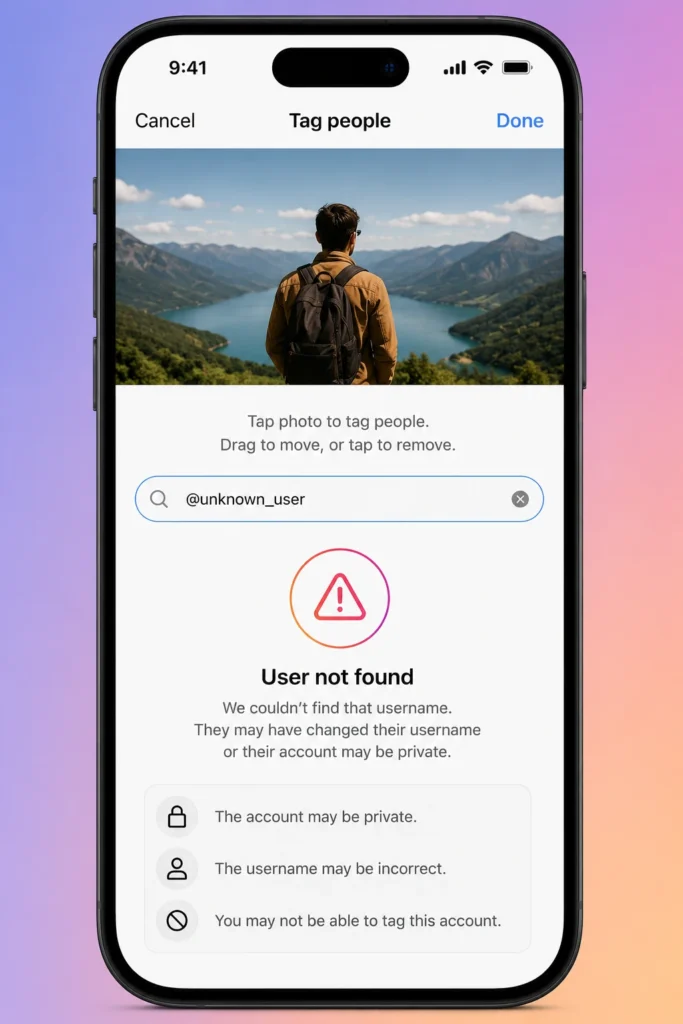
Why Can’t You Tag Someone on Instagram?
| Problem | Likely Cause | Fix |
| Username doesn’t appear in search | Account is private and you don’t follow them, or tagging is restricted | Follow the account, or ask them to adjust their tag settings |
| Tag People option missing | Outdated app version | Update the Instagram app |
| Tag disappears after posting | The person removed the tag themselves | Nothing to fix, this is their choice |
| Can’t tag in Story | Their Story mention settings block it | Check with the person or try mentioning in comments instead |
| Tag not saving on edit | Temporary app or server issue | Close and reopen the app, then retry |
| Account seems to not exist | Username was changed or account deleted | Search their new username or confirm the account still exists |
1. Private Accounts
You can tag private accounts, but the tag will only be visible to that account’s approved followers unless they choose to accept and show it publicly.
2. Blocked Accounts
If either account has blocked the other, tagging isn’t possible in either direction.
3. Username Changed
If someone recently changed their username, old tags pointing to the previous handle may stop working correctly until the post is re-tagged.
4. Outdated App
Instagram regularly updates its tagging interface. If a tagging option seems to be missing entirely, updating the app usually resolves it.
5. Restricted Accounts
Accounts that are restricted or limited by Instagram for policy violations may have reduced tagging capabilities as part of those restrictions.
6. Tag Limits
Hitting the maximum number of tags allowed on a single piece of content will prevent additional tags until some are removed.
7. Temporary Instagram Bugs
Like any platform, Instagram occasionally has short-term glitches. If tagging fails across the board and none of the above explanations apply, it’s often a temporary server-side issue that resolves on its own.
Tagging Businesses and Products
Business Accounts
You can tag any business account the same way you’d tag a personal account, by searching their username during the tagging process.
Product Tags
Businesses with a shop set up on Instagram can tag specific products directly in their photos and Reels. Viewers can tap the product tag to see pricing and details, and depending on the setup, complete a purchase without leaving the app.
Professional Accounts
Creator and Business accounts get access to a Professional Dashboard, which includes insights into how tagged content performs, separate from tagging tools on personal accounts.
Instagram Tagging Best Practices
1. Avoid Spam Tagging
Repeatedly tagging unrelated or random accounts to gain attention violates Instagram’s spam policies and can lead to reduced reach or account penalties.
2. Tag Relevant People
Stick to tagging people who are actually featured in the content, collaborators, or brands directly connected to the post.
3. Increase Engagement Naturally
Well-placed, relevant tags encourage the tagged account to engage with or share the post, which can genuinely extend your reach without breaking any platform rules.
Frequently Asked Questions
1. How do you tag someone on Instagram after posting?
Open the post, tap the three-dot menu, select Edit, then Tag People, and search for their username.
2. Can you tag someone in an Instagram Story?
Yes, using the Mention sticker or by typing @username directly in Story text.
3. Can you tag someone in a Reel?
Yes, the same tagging option available for photo posts also works for Reels, both before and after publishing.
4. Why can’t I tag someone?
Common reasons include private account restrictions, an outdated app, or the account limiting who can tag them in their privacy settings.
5. Does Instagram notify tagged users?
Yes, tagged accounts receive a notification, and mentioned accounts in captions or comments do too.
6. What’s the difference between tagging and mentioning?
A tag is attached to a specific point on a photo or video. A mention is a clickable @username typed into text, like a caption or comment.
Conclusion
Tagging someone on Instagram seems like a simple thing to do.. It is actually a lot more than just adding someone’s username to a post. When you use tags correctly they help you say who is in your photos and videos. Tags also give credit to the people who helped you with your post. You can use tags to say thank you to brands.. Tags make your posts more interesting to other people.
You need to know where you can use tags on Instagram. You can use them in your posts in your Stories in your Reels in the words under your photos and in the comments. Knowing how all these things work helps you use the feature at the right time. It is also important to know the difference between tags, mentions and hashtags. Each of these things does something
You should also know how Instagram’s privacy settings work. You need to know about tag approvals and the notification system. This helps you avoid problems like tags not working or things showing up on your profile that you do not want.
If you forget to tag someone before you post something you can always go back. Edit it later.. If someone tags you in something you do not like you can look at it hide it or remove it. Instagram has controls that help you do this.
If you follow the steps, in this guide you will be able to tag people on Instagram without any problems. You will be able to tag people in all parts of Instagram. You will respect peoples privacy.. You will keep your posts looking neat and professional.