


Have you ever wondered who shared your Instagram post after seeing a high number of shares? Whether you’re a creator, business, or casual user, it’s natural to be curious about who’s helping your content reach more people.
Instagram provides some sharing insights, but it also protects user privacy. If you have a Professional account, you can see how many times your post or Reel was shared, and in some cases, view public Story reshares. However, Instagram never reveals who shared your content through Direct Messages.
In this guide, you’ll learn what Instagram does and doesn’t show about post shares, how to check your share count, and what Personal, Creator, and Business accounts can access in 2026.
What Does “Shared” Mean on Instagram?
When Instagram says a post has been shared it means someone has sent or reposted your Instagram content so that another person can view your Instagram content. Instagram records information and gives you different levels of visibility when someone shares your Instagram content because not all shares of your Instagram content are the same. Depending on how someone shares your Instagram content you get information.
Many people think that every share of their Instagram content works the way but that is not true.
Instagram has rules about privacy that decide whether you can see how many times your Instagram content was shared or who shared your Instagram content or if you get no information about the share of your Instagram content.
Here are the different ways your Instagram content can be shared.
Sharing to Stories
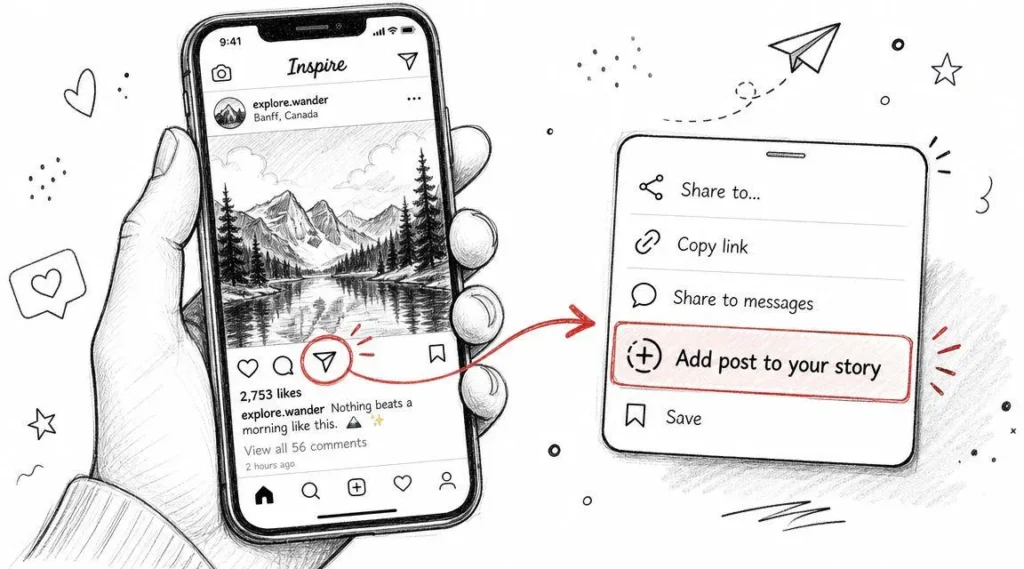
One of the ways to share things on Instagram is by adding a post or Reel to an Instagram Story. When you want to share something you can tap the paper plane icon that says Share and then choose Add to Story. This lets you repost something for your followers to see.
If someone shares your post or Reel and they have an account you might be able to see that they shared it. Instagram might let you view the Story where they shared your content. Only if their Story is still up. This is a way to find out who shared your things but it does not happen very often.
You should know that these shared Stories do not last forever. Instagram Stories are up for 24 hours so you can only see who shared your things for a short time. After that the Story is. You can not see it anymore. Also if the person who shared your content has an account or if Instagram decides not to show the shared Story then you will not be able to see it at all. Instagram may remove the Story Reshares feature for some content. That means you will not be able to see who shared your Instagram post or Reel.
Sharing Through Direct Messages
People usually share things from Instagram by using Direct Messages. They can send your picture, video or a bunch of pictures to one friend or a lot of friends easily.
Direct Messages are like talks so Instagram keeps them secret, between the people talking. Even if a lot of people send your picture to their friends using Direct Messages Instagram will not tell you who those people are.
If you have a kind of account like a Business account or a Creator account you can see how many times people shared your stuff on Instagram Insights.. It will not say who shared it or who got it. This is how Instagram does things for all kinds of accounts.
Sharing Outside Instagram
You can share things from Instagram on places too. People can copy the link to your post. Send it to others using things like WhatsApp, X, Facebook Messenger, Telegram, email or text message. Some people even put Instagram links on their websites or blogs.
When your post is shared outside of Instagram, the people who run Instagram cannot always track what happens to the link. So when people share your link outside of Instagram it does not show up in your Instagram information as something that was shared. You also cannot see who shared the link or where they sent it.
This means that a lot of people might be looking at your post from outside of Instagram. You will not be able to see all the details about it inside the Instagram app. Your Instagram post may get a lot of traffic from, outside Instagram.
Sharing Reels
Instagram Reels can be shared in the same ways as regular feed posts:
- Added to an Instagram Story
- Sent through Direct Messages
- Shared using an external link
The same privacy rules apply regardless of the content format. You cannot see who shared your Reel through DMs, but you may see the total number of shares if you have access to Instagram Insights. Public Story reshares may also be visible while the Story remains active.
Because Instagram’s recommendation algorithm heavily promotes engaging Reels, they often generate far more shares than standard photo posts or carousels. For creators and businesses, a high share count is often a strong indicator that a Reel is reaching audiences beyond existing followers and gaining broader organic visibility.
Can You See Who Shared Your Instagram Post?
The answer changes slightly depending on your account type.
1. Personal accounts
Personal accounts get the least visibility. There’s no Insights tab, no share count, and no breakdown of engagement. If you want any data at all on who’s sharing your posts, you’ll need to switch account types first.
2. Creator accounts
Creator accounts unlock the Professional Dashboard, which includes Insights for every post and Reel. You’ll see total shares, reach, and impressions, along with access to the Story Reshares list when it’s available.
3. Business accounts
Business accounts get the same Insights access as Creator accounts, plus a few extra tools aimed at commerce and promotion, such as contact buttons and ad-boosting shortcuts. For the purpose of seeing who shared your content, Business and Creator accounts function almost identically.
4. Why Instagram hides identities
Instagram’s approach isn’t a bug, it’s a deliberate privacy decision. People share content the way they’d forward a text message, expecting the exchange to stay between them and the recipient. If Instagram exposed every DM share to the original poster, people would likely share less, and less openly. Keeping shares anonymous encourages more organic, natural distribution of content across the platform.
Can You See How Many Times Your Post Was Shared?
Yes, but only if you have a Professional Instagram account. While Instagram doesn’t reveal the identities of people who share your content, it does provide the total number of shares your post or Reel has received through Instagram Insights.
For creators, businesses, and marketers, this metric is one of the most valuable engagement indicators. A high share count often suggests that people found your content useful, entertaining, or informative enough to send it to others, helping it reach audiences beyond your existing followers.
If your posts are attracting new visitors through shares, make sure your profile is ready to convert them into followers. A clear and engaging bio plays a big role in that. Check out our Instagram Bio Ideas guide for inspiration.
Viewing Share Count
Checking your post’s share count is simple if you have access to Instagram Insights.
To view it:
- Open the Instagram app and go to your profile.
- Select the post or Reel you want to analyze.
- Tap View Insights below the post (or open the Insights section from the menu, depending on your app version).
- Look for the paper airplane (Share) icon.
The number displayed next to this icon represents the total number of times your content has been shared within Instagram.
Depending on the type of content and available analytics, this share count may include actions such as:
- Sharing the post through Direct Messages.
- Adding the post or Reel to an Instagram Story.
- Other internal sharing actions tracked by Instagram.
It’s important to remember that this is an aggregate metric. Instagram tells you how many shares occurred, but it never reveals who performed those shares.
Requirements
Not every Instagram account has access to sharing analytics.
To view your share count, you must have either a:
- Business account, or
- Creator account
These account types unlock Instagram Insights, which provides detailed performance metrics for your content.
The good news is that there are no follower minimums or eligibility requirements. You don’t need thousands of followers or a verified account, simply switching from a Personal account to a Professional account gives you access to these analytics at no additional cost.
If you’re still using a Personal account, Instagram won’t display share counts or most other engagement metrics.
Professional Dashboard
The Professional Dashboard serves as the central hub for all your Instagram analytics. Instead of looking at one post in isolation, it helps you understand how your content performs over time and identify trends across your account.
From the Professional Dashboard, you can monitor metrics such as:
- Total shares
- Reach
- Impressions
- Likes
- Comments
- Saves
- Profile visits
- Follower growth
- Overall engagement
Looking at these metrics together provides much more context than the share count alone. For example, a post with high shares but relatively few likes often indicates that users found the content valuable enough to send privately, even if they didn’t publicly engage with it. Likewise, content that receives many shares and saves may continue reaching new audiences through Instagram’s recommendation system.
For creators and businesses, regularly reviewing the Professional Dashboard can help identify which types of posts generate the most shares, allowing you to refine your content strategy and create more engaging posts in the future.
How to Check Instagram Share Insights
If you have a Business or Creator account, Instagram makes it easy to see how many times your posts and Reels have been shared through Instagram Insights. Although you won’t be able to identify individual users who shared your content through Direct Messages, you can still access valuable engagement data that helps measure your content’s performance.
Follow these steps to check your Instagram share insights.
Step 1: Switch to a Professional Account
Instagram Insights are only available for Professional accounts, which include both Business and Creator profiles. If you’re still using a Personal account, you’ll need to switch before you can access sharing analytics.
To switch your account:
- Open the Instagram app and go to your profile.
- Tap the menu (☰) icon in the top-right corner.
- Select Settings and Privacy.
- Scroll down to Account Type and Tools.
- Tap Switch to Professional Account.
- Choose either a Creator or Business account and follow the setup instructions.
The switch is completely free, and you can change back to a Personal account later if needed.
Step 2: Open the Post or Reel
Once your Professional account is set up, navigate to the specific piece of content you want to analyze.
For a regular feed post:
- Open the post from your profile.
- Tap View Insights located beneath the post.
For a Reel:
- Open the Reel.
- Tap the three-dot menu (⋯).
- Select View Insights or Insights, depending on your version of the Instagram app.
Instagram will then display a dashboard showing various performance metrics for that individual post or Reel.
Step 3: Find the Share Metrics
Inside the Insights page, look for the paper airplane (Share) icon under the Interactions or Engagement section.
This number represents the total times your content has been shared within Instagram. Depending on the content and current Instagram features, the share metric may include:
- Direct Message shares
- Story reshares
- Other internal sharing actions tracked by Instagram
If your content has been reshared to public Instagram Stories and the feature is available, you may also see a View Story Reshares option. Selecting it can display public accounts that have reshared your post while their Stories remain active.
Keep in mind that Story reshares are temporary. Once the 24-hour Story expires, the reshare will no longer be visible.
Troubleshooting Missing Insights
If you don’t see the Insights option or your share metrics aren’t appearing, there are several possible reasons.
You’re using a Personal account.
Only Business and Creator accounts have access to Instagram Insights. Switching to a Professional account is the first step.
The post is too new.
Instagram doesn’t always update analytics instantly. It may take several minutes, or sometimes a few hours, for engagement data, including shares, to appear.
Your app needs updating.
Running an outdated version of Instagram can cause certain analytics features to disappear. Updating the app often resolves the issue.
Instagram is experiencing a temporary glitch.
Occasionally, Insights become unavailable due to server issues or temporary bugs. In most cases, the data returns automatically after a short period.
Your account recently switched to Professional.
Insights generally begin collecting data only after you convert your account. Older posts may have limited analytics if they were published before the switch.
If you’ve checked these possibilities and Insights are still unavailable, try logging out and back in, clearing the app cache (on supported devices), or waiting a few hours before checking again. In most cases, Instagram restores analytics automatically without requiring any additional action.
Instagram Share Metrics Explained
Shares don’t tell the whole story on their own. Here’s how the main metrics fit together.
1. Shares
The total number of times your content was sent onward, combining Story reshares, DM shares, and any other native share action.
2. Reach
The number of unique accounts that saw your post at least once. High reach with a high share count usually means your content is spreading well beyond your existing followers.
3. Impressions
The total number of times your post was viewed, including repeat views from the same account. This number is always equal to or higher than reach.
4. Saves
How many people bookmarked your post to view again later. Saves often signal that people found the content genuinely useful, not just entertaining.
5. Profile visits
How many people clicked through to your profile after seeing the post. A spike here after a share surge usually means new people are discovering your account.
6. Engagement rate
A combined measure of likes, comments, saves, and shares relative to your reach or follower count. It’s the single best number for judging whether a post actually resonated with your audience.
Personal vs Creator vs Business Accounts
Feature comparison table
| Feature | Personal | Creator | Business |
| Insights access | No | Yes | Yes |
| Share count visibility | No | Yes | Yes |
| Story Reshares list | No | Yes | Yes |
| Contact buttons (email, call) | No | Optional | Yes |
| Ad promotion tools | No | Limited | Yes |
| Category label on profile | No | Yes | Yes |
| Best suited for | Casual users | Influencers, public figures | Brands, shops, services |
Which account type is best?
If your main goal is tracking who’s sharing your content, either Creator or Business will work equally well. Choose Creator if you’re an individual building a personal brand, and Business if you’re running a company page or online store that needs contact and shopping tools.
Can You See Who Shared Your Reel?
1. Share insights
Reel sharing works the same way as feed posts. Open the Reel, tap the three dots, select Insights, and look under Interactions for the Shares number. If public accounts reshared it to their Story, the Story Reshares list will show their usernames while those Stories are still active.
2. Limitations
Reels tend to get shared through DMs far more often than feed posts, since that’s how most viral clips spread. Unfortunately, that also means a large share of your Reel’s shares will always stay anonymous, since DM sharing is never traceable.
Can You See Who Shared Your Story?
1. Story mentions
If someone reshares your Story and tags you, you’ll get a notification and can view their Story directly from your activity feed. This is the most reliable way to spot who’s amplifying your content.
2. Story reshares
Instagram also has a general Story reshare feature that lets public accounts repost content they’ve seen from someone else’s Story. If you posted the original Story, checking “View Story Reshares” from your own Story menu can surface who reshared it, but only for 24 hours.
3. When usernames are visible
Usernames only show up for public accounts that are reshared within the active 24-hour window. Private accounts, expired Stories, and any sharing done through DMs will never reveal a username here.
Can You See Who Shared Your Post Through Direct Messages?
The simple answer is no. Instagram does not allow you to see who shared your post through Direct Messages (DMs), regardless of whether you have a Personal, Creator, or Business account.
Although Instagram provides professional users with the total number of shares a post has received, it intentionally keeps all Direct Message activity private. This policy helps protect user conversations and ensures that people can share content freely without exposing their identities to the original creator.
Instagram Privacy Policy
Instagram treats Direct Messages as private communication between users. In much the same way that a messaging app or mobile carrier doesn’t reveal who you’ve texted, Instagram doesn’t disclose who has shared your content in a private conversation.
This privacy rule applies to everyone, including:
- Personal accounts
- Creator accounts
- Business accounts
- Verified accounts
There is no setting, subscription, or paid feature that allows you to bypass this restriction. Even if your post has been shared thousands of times through DMs, Instagram will never display the usernames of the people who sent or received those messages.
Meta has designed this system to protect user privacy and encourage people to share content naturally without worrying that their activity will be visible to content creators or businesses.
What You Can and Cannot See
Although Instagram hides individual identities, it still provides some useful engagement information through Instagram Insights for Professional accounts.
1. What You Can See
If you have a Business or Creator account, you can:
- View the total number of times your post or Reel has been shared.
- Track overall engagement alongside metrics such as reach, impressions, saves, likes, and comments.
- Monitor how sharing activity changes over time to understand which content performs best.
- In some cases, view public Story reshares while those Stories are still active.
2. What You Cannot See
Instagram does not reveal:
- Who shared your post through Direct Messages.
- Who received your shared content.
- The usernames of people involved in the conversation.
- How many individual chat threads your post appeared in.
- Whether your content was shared in a private group conversation.
- Any details about the recipients or the context of the share.
In other words, you may notice your share count increasing in Instagram Insights, but you won’t know which followers contributed to that number or where your content was sent.
This policy has remained consistent for years and continues to be one of Instagram’s core privacy protections. While the platform regularly introduces new analytics features for creators and businesses, it has shown no indication that it plans to expose the identities of users who privately share posts through Direct Messages.
Why Instagram Doesn’t Reveal Who Shared Your Posts
1. Privacy protection
Sharing feels more like a private message than a public broadcast to most users. Exposing that activity to strangers would break the basic trust people place in the platform when they hit send.
2. User trust
If people believed every share was being tracked and reported back to the poster, they’d likely think twice before sharing anything personal, funny, or opinionated. Anonymity keeps sharing behavior natural rather than self-conscious.
3. Platform policies
Meta, Instagram’s parent company, applies similar privacy logic across Facebook and Threads as well. None of these platforms expose who forwarded a private message or DM, which keeps the sharing experience consistent across their apps.
Can Third-Party Apps Show Who Shared Your Post?
People look for apps that say they can tell you who shared your Instagram posts especially when they see that a lot of people are sharing them.. The truth is, these apps are not telling you the truth.
The thing is, no other app can really show you who shared your Instagram post in a message. Instagram just does not give out this information. No app can actually get it.
If a website or an app says it can find out who shared your Instagram posts you should be very careful with it.
Do They Work?
The short answer is no.
Legitimate social media management and analytics platforms only access the information that Instagram officially allows through its APIs (Application Programming Interfaces). These tools can display metrics such as:
- Total shares
- Reach
- Impressions
- Likes
- Comments
- Saves
- Follower growth
- Engagement rate
However, they cannot access private Direct Message data because Instagram never exposes that information, not even to its own business partners.
Whether you use a popular analytics platform or Instagram’s built-in Insights, you’ll receive the same limitation:
- You can see how many times your content was shared.
- You cannot see who shared it.
If an app claims otherwise, it isn’t using official Instagram data.
Security Risks
Many apps that advertise the ability to reveal Instagram sharers require you to log in using your Instagram username and password outside the official Instagram app.
This is a major security risk.
Providing your login credentials to an untrusted service can lead to problems such as:
- Your Instagram account is being hacked.
- Unauthorized posts or messages being sent from your account.
- Your followers receive spam or phishing messages.
- Your personal information being stolen.
- Your account being temporarily locked or permanently suspended for suspicious activity.
Some services may also request excessive account permissions that allow them to collect your profile data, contacts, or activity for marketing purposes.
To protect your account, only sign in through Instagram’s official login system and avoid sharing your credentials with unknown websites or apps.
Scam Warning
If an app, website or online service says it can show you who shared your Instagram posts, its probably lying.
Instagram has rules to keep user information private. These rules stop developers from finding out who shares posts through private messages.
This information isn’t available through Instagram’s tools so no trustworthy app or service can get it.
Instagram share data is private. Instagram’s share data can’t be accessed by anyone.
Common warning signs include:
- Claims that they can reveal everyone who shared your post.
- Requests for your Instagram username and password.
- Promises of “secret” or “hidden” Instagram analytics.
- Demands for payment before showing results.
- Fake dashboards displaying fabricated data.
- Offers that seem too good to be true.
These services usually try to get your login credentials, sell you things you do not need or show you information about Instagram that is not true.
The best thing to do is to use Instagram Insights or tools that help you manage your social media accounts and use the Instagram application programming interfaces.
These tools cannot show you when people share things privately. They do give you correct information about how people interact with your posts without putting your account or personal information in danger.
In short, if a tool says it can show you exactly who shared your Instagram post through Direct Messages it is making a promise that Instagram technology does not allow. That is something Instagram services, like Instagram Insights cannot do because Instagram services have to follow the rules of Instagram technology.
How to Get More Shares on Instagram
1. Create share-worthy content
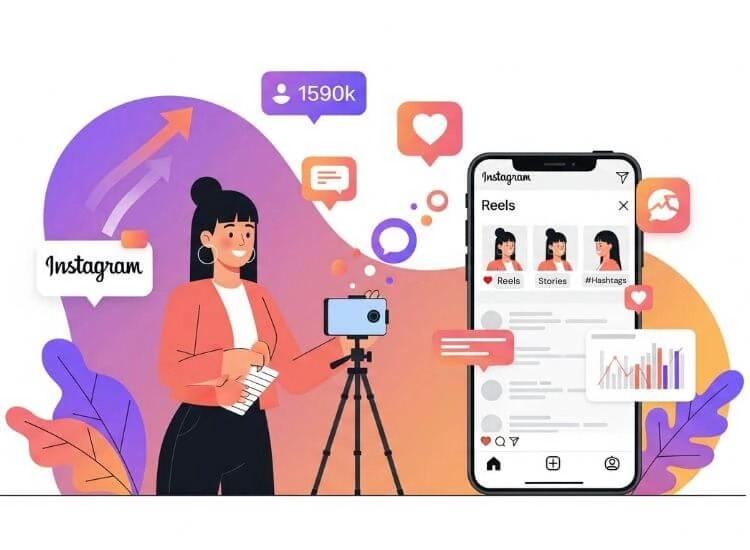
People share what makes them look good to their own audience: useful tips, relatable humor, and content that reflects their identity or interests.
2. Use Reels
Reels get significantly more organic reach than static posts, which naturally leads to more shares. If growing your share count matters, Reels should make up a large part of your content mix.
3. Strong hooks
The first second of a Reel or the first line of a caption decides whether someone keeps watching or scrolls past. A strong hook increases watch time, which in turn increases the odds of a share.
4. Carousels
Multi-slide posts that teach something step by step tend to get saved and shared more than single images, since they carry more standalone value.
5. Educational content
How-to posts, tips, and explainers perform well because sharing them makes the sharer look helpful to their own followers.
6. Call-to-actions
A simple line like “send this to someone who needs it” measurably increases shares. People often need a small nudge to actually do the resharing.
Common Myths About Instagram Shares
Myth vs Fact table
| Myth | Fact |
| Business accounts can see who shared via DM | False. No account type unlocks DM share identities. |
| Paid third-party apps can reveal sharers | False. These apps use the same limited API data everyone else has. |
| Turning on Insights retroactively shows past shares | False. Insights only track data from the moment you switch to a Professional account. |
| Private accounts show up in Story Reshares lists | False. Only public accounts appear in that list. |
| Instagram notifies you every time someone shares your post | False. You’re only notified if the person tags or mentions you. |
Frequently Asked Questions
1. Can someone share my Instagram post without me knowing?
Yes. Unless they tag you in a Story or message you directly, you’ll have no way of knowing who shared your post, especially if it happened through DMs.
2. Can I stop people from sharing my posts?
Partially. Go to Settings and Privacy, then Sharing and Reuse, where you can toggle off “Posts and Reels to Stories” and “Stories in Messages.” This limits some sharing options but won’t stop someone from taking a screenshot.
3. Do shares improve reach?
Yes. Shares are one of the strongest signals Instagram’s algorithm uses to judge whether content deserves wider distribution. Posts with high share rates often get pushed to more non-followers through Explore and Reels recommendations.
4. Are Story shares counted?
Yes, Story reshares count toward your total share number in Insights, alongside DM shares and any other native sharing action.
5. Why don’t Insights show shares?
If Insights isn’t showing a shared number at all, check that you’re on a Business or Creator account and that the post is old enough for data to populate. Brand new posts sometimes take a little time before metrics fully appear.
6. Can private accounts share posts?
Yes, private account holders can still share posts through DMs. However, their reshares won’t appear in any public Story Reshares list, since that list only pulls from public accounts.
7. Can someone share screenshots?
Yes, and Instagram has no way to track or report screenshots taken of your posts. This is completely outside the platform’s tracking system.
Conclusion
Instagram provides you with some information about how your content’s being shared. You can see the number of shares if you have a Business or Creator account. Sometimes you can even see when someone has shared your Story publicly within the 24 hours. However you will never know who shared your content through messages.
Instagram has made a choice to keep this information private. It is not something they are trying to change. All the legitimate tools that analyze Instagram data work with this limitation in mind.
The best thing to do is to pay attention to the information you can see such as the number of shares, the number of people your content reaches, the number of saves and the engagement rate. Use this information to figure out what is working for your Instagram content and what is not.