

Tracking keyword rankings helps you understand whether your SEO work is actually bringing visibility and traffic to your website. If your pages are moving up in Google search results, you can identify what is working and improve the pages that are struggling.
Many people assume that Google Analytics shows keyword rankings directly. That is where the confusion starts. In older versions of Google Analytics, users could see more keyword data. Today, most organic keywords are hidden, and GA4 does not work the same way.
The short answer is this: Google Analytics alone cannot show complete keyword ranking data.
To properly track rankings, you need to connect your Google Analytics 4 property with Google Search Console. Search Console provides keyword data such as impressions, clicks, average position, and click-through rate, while GA4 helps you understand what users do after they land on your website.
When these two platforms work together, you get a much clearer picture of your SEO performance. You can see:
- Which keywords bring traffic
- Which pages rank in Google
- How users interact with those pages
- Which keywords lead to conversions
- Where your ranking opportunities are
In this guide, you will learn how to connect Search Console with GA4, where to find keyword ranking reports, how to analyze keyword performance, and which metrics actually matter when tracking SEO growth.
Can You Check Keyword Rankings Directly in Google Analytics?
The short answer is no. Google Analytics does not directly show full keyword ranking data anymore.
Years ago, marketers could see many organic keywords inside Google Analytics reports. That changed when Google started protecting user search privacy. As a result, most organic searches now appear as “not provided,” which means the exact keyword is hidden.
This is why many website owners open GA4 expecting to find keyword rankings, only to realize the data is limited.
Why Google Removed Most Organic Keyword Data
Google began encrypting search queries to improve user privacy. Because of this change, Analytics stopped showing most organic keywords coming from Google search results.
Instead of seeing the exact keyword someone searched for, website owners mainly see traffic numbers and user behavior metrics.
This shift pushed SEO professionals toward using Google Search Console for keyword-level insights.
Difference Between Google Analytics and Google Search Console
Although both tools come from Google, they serve different purposes.
| Tool | Main Purpose |
|---|---|
| Google Analytics 4 | Tracks user behavior and website performance |
| Google Search Console | Tracks search visibility and keyword performance |
GA4 focuses on what happens after a visitor lands on your website.
For example, it helps you track:
- Sessions
- Bounce rate
- Engagement time
- Conversions
- Traffic sources
Search Console focuses on what happens before users visit your site.
It shows:
- Search queries
- Keyword rankings
- Impressions
- Clicks
- Average position
- CTR (click-through rate)
What GA4 Can and Cannot Show
GA4 can help you measure SEO traffic performance, but it is not a dedicated keyword ranking tool.
What GA4 Can Show
- Organic traffic numbers
- Landing page performance
- User engagement metrics
- Conversion data from organic visitors
- Search Console reports after integration
What GA4 Cannot Show by Itself
- Full keyword ranking lists
- Exact keyword positions without Search Console
- Competitor keyword rankings
- Daily rank tracking
- Complete organic keyword data
This distinction is important because many beginners try to use GA4 alone for SEO tracking and miss valuable ranking insights.
Why Search Console Integration Is Necessary
To properly check keyword rankings inside GA4, you must connect your Search Console account.
Once connected, GA4 can display Search Console reports directly inside your Analytics dashboard. This allows you to combine keyword data with user behavior data in one place.
For example, you can see:
- Which keywords drive the most traffic
- Which pages rank for specific terms
- Which keywords have high impressions but low CTR
- Which rankings lead to conversions
This combination makes SEO reporting much more useful and actionable.
Key Takeaway
| Platform | What It Does |
|---|---|
| GA4 | Traffic and behavior data |
| Search Console | Keyword ranking data |
| Together | Complete SEO insights |
What You Need Before Tracking Keyword Rankings
Before you can track keyword rankings properly, you need to set up a few Google tools correctly. Without this setup, your reports may stay empty or show incomplete data.
The good news is that the process is simple once you understand how the tools work together.
Set Up Google Analytics 4 (GA4)
To track SEO performance, you first need a Google Analytics property connected to your website.
GA4 helps you measure how visitors behave after arriving from search engines. It tracks things like traffic, engagement, conversions, and landing page performance.
Creating a GA4 Property
To create a GA4 property:
- Go to the Google Analytics dashboard
- Open the Admin section
- Click “Create Property”
- Enter your website details
- Select your time zone and currency
- Finish the setup process
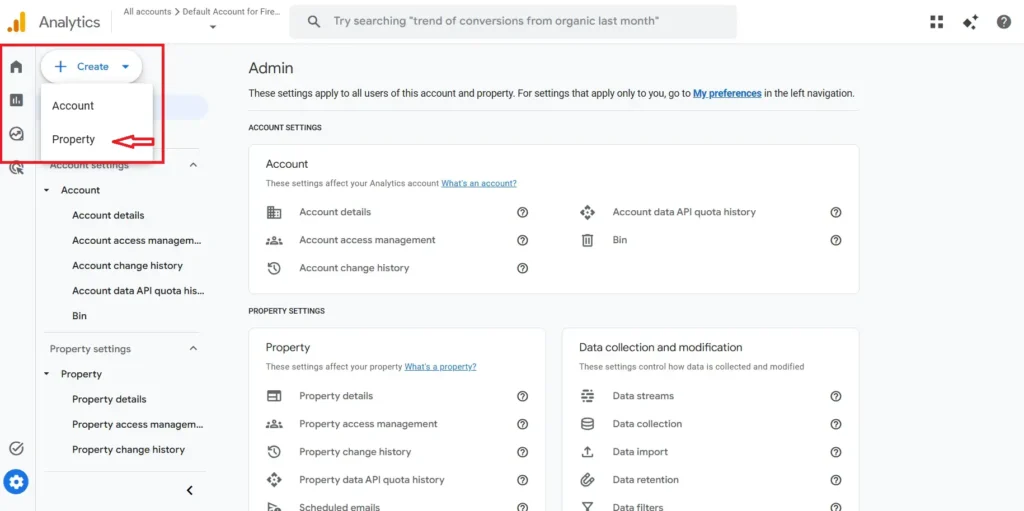
After setup, Google will generate a Measurement ID for your website.
Installing GA4 on Your Website
You must add the GA4 tracking code to your site so Google can collect data.
Common installation methods include:
- Adding the code manually to your website header
- Using Google Tag Manager
- Using CMS plugins for platforms like WordPress, Shopify, or Wix
Once installed correctly, GA4 will start collecting website traffic data.
Set Up Google Search Console
Next, you need Google Search Console.
This is the tool that provides keyword rankings, impressions, clicks, and average position data.
Without Search Console, you cannot properly track keyword rankings inside GA4.
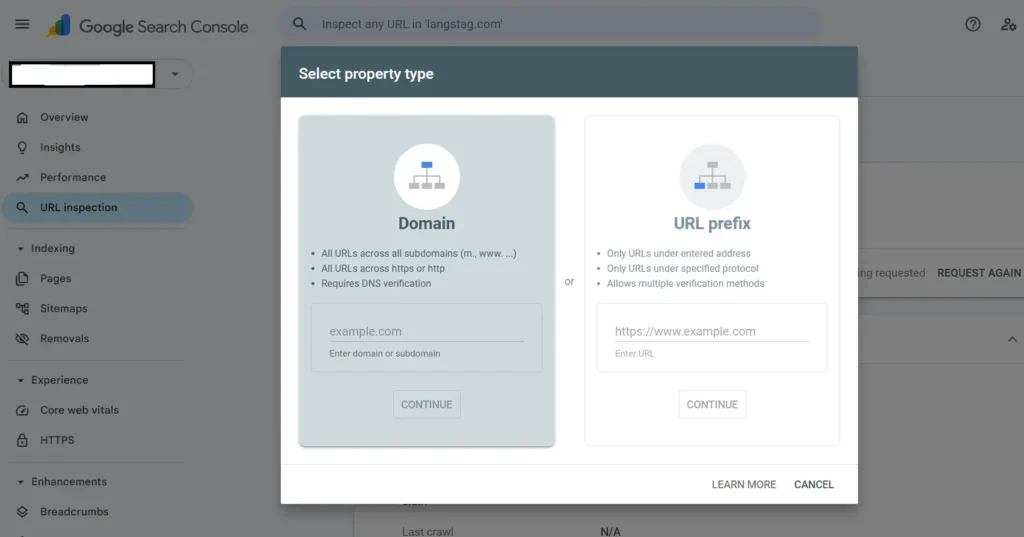
Verifying Website Ownership
Before using Search Console, Google requires you to verify that you own the website.
This helps prevent unauthorized access to search performance data.
Common Verification Methods
Google offers several verification options:
- HTML file upload
- HTML meta tag
- DNS record verification
- Google Analytics verification
- Google Tag Manager verification
DNS verification is usually the most reliable long-term method because it remains active even if your website theme changes.
After verification, Search Console will begin collecting keyword and search visibility data.
Link Google Search Console With GA4
After both tools are active, the final step is connecting them together.
This integration allows keyword data from Search Console to appear directly inside GA4 reports.
Why Linking Is Important
Linking both platforms helps you combine SEO data with user behavior metrics.
Instead of only seeing rankings, you can also understand:
- Which keywords drive engagement
- Which pages convert visitors
- Which rankings generate revenue or leads
- Which pages need optimization
This creates a much more complete SEO reporting system.
Permissions Needed
To connect the accounts, you need:
- Admin access in GA4
- Verified owner access in Search Console
If you do not have the required permissions, the linking option may not appear.
How Long Data Takes to Appear
After linking the accounts, data does not appear instantly.
In most cases:
- Initial Search Console data may take 24–48 hours
- New websites may take longer to gather keyword data
- Some reports need enough impressions before showing results
This delay is normal, especially for newer websites with lower search traffic.
How to Link Google Search Console to Google Analytics 4
Connecting Google Search Console with Google Analytics is necessary if you want to view keyword ranking data inside GA4.
The process only takes a few minutes, but many users miss important settings during setup. Follow the steps below carefully to avoid connection issues.
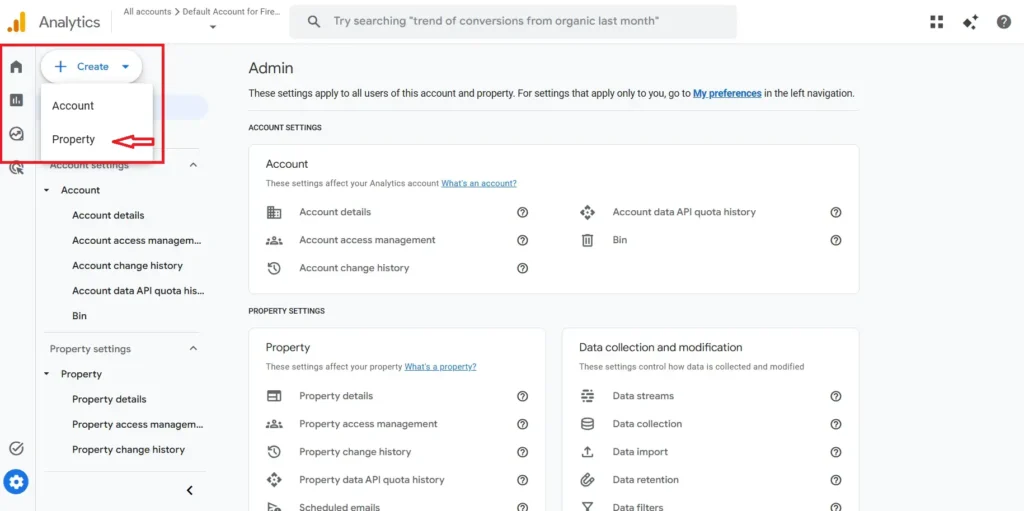
Step 1 — Open GA4 Admin Settings
Log in to your Google Analytics account and select the correct GA4 property for your website.
In the lower-left corner of the dashboard, click the Admin gear icon.
You will now see two main columns:
- Account
- Property
Make sure you are inside the correct property before continuing.
Step 2 — Go to Product Links
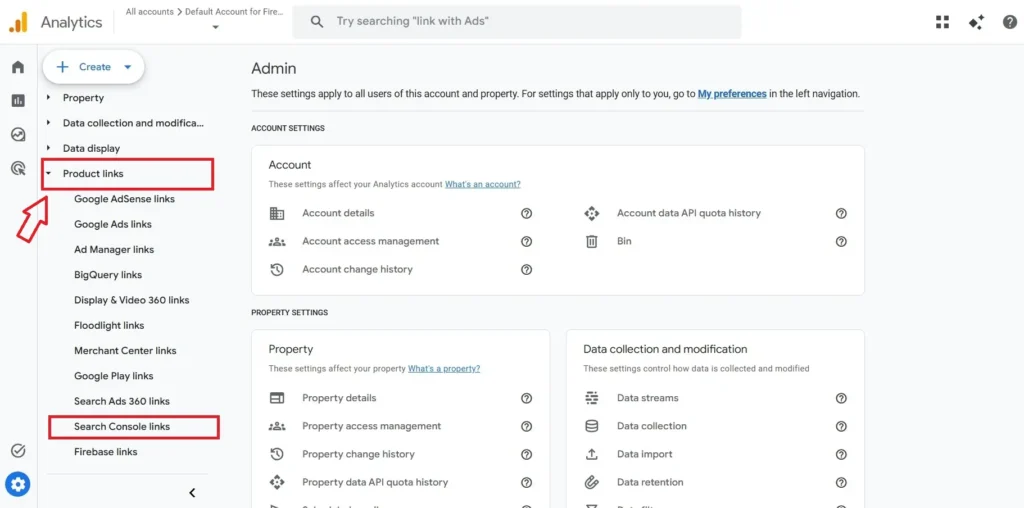
Inside the Property column, scroll down until you find Product Links.
Click it to open all available integrations.
This section allows GA4 to connect with other Google products, including Search Console.
Step 3 — Select Search Console Links
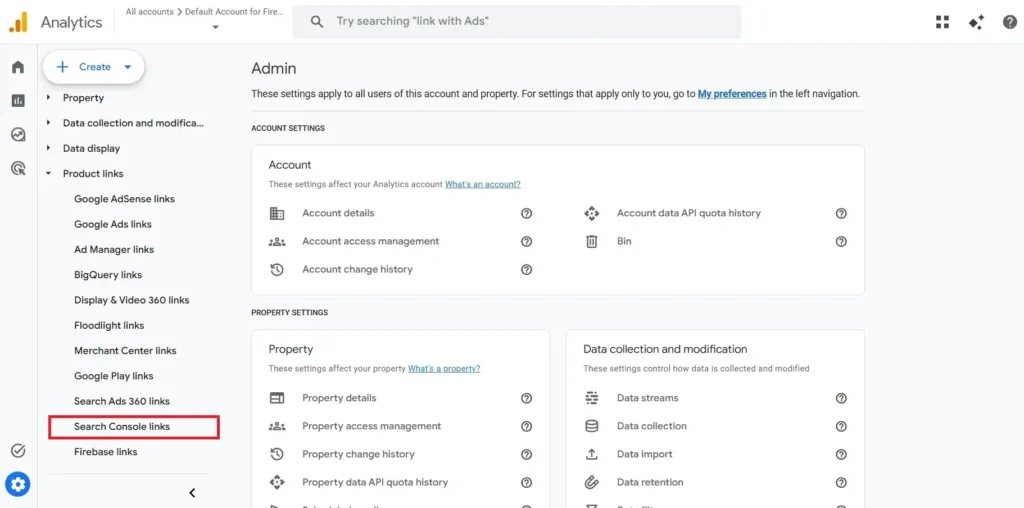
Under Product Links, click Search Console Links.
Then click the blue Link button in the top-right corner.
GA4 will now open the Search Console linking setup wizard.
Step 4 — Choose Your Property
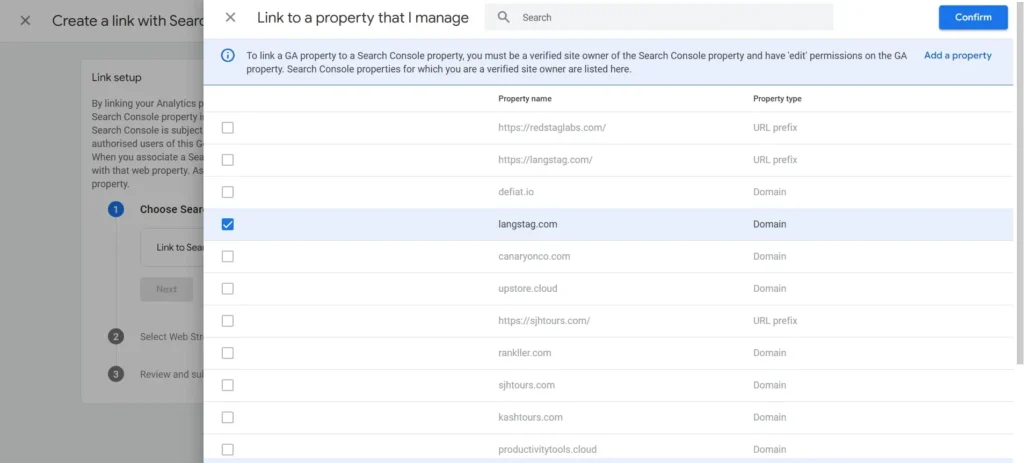
Click Choose Accounts and select the verified Search Console property connected to your website.
After selecting the property:
- Click Confirm
- Choose the appropriate web data stream
- Click Next
Make sure both properties belong to the same website domain.
For example:
- GA4 property:
example.com - Search Console property:
example.com
If the domains do not match, keyword data may not appear correctly.
Step 5 – Confirm the Connection
Review the setup details and click Submit.
Once completed, GA4 will display a confirmation message showing that the link is active.
After linking:
- Go to Reports
- Open Library
- Publish the Search Console reports if they are not already visible
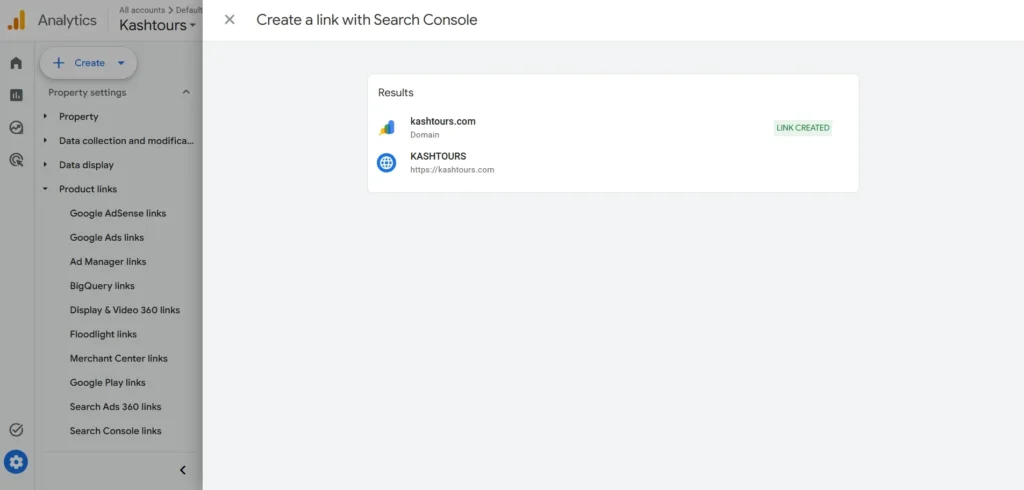
You should eventually see reports like:
- Queries
- Organic Google Search Traffic
- Landing Pages
Keep in mind that data may take up to 48 hours to appear.
Common Setup Mistakes
Many users complete the setup but still do not see keyword data. In most cases, one of these issues is the cause.
Using the Wrong Property
Users often select a different domain version.
Examples:
http://example.comhttps://example.comwww.example.com
These are treated as separate properties in some cases.
Missing Permissions
You need:
- Admin access in GA4
- Verified owner access in Search Console
Without proper permissions, the linking option may fail or stay unavailable.
Search Console Not Verified
If your website is not verified in Search Console, Google will not allow the connection.
Always verify ownership before starting the linking process.
Expecting Instant Data
Keyword reports do not appear immediately after setup.
Usually:
- Existing websites: 24–48 hours
- New websites: several days or longer
This delay is normal.
Forgetting to Publish Search Console Reports
Sometimes the integration works correctly, but the reports remain hidden.
To fix this:
- Go to Reports → Library
- Find the Search Console collection
- Click Publish
After publishing, the reports will appear in the left sidebar navigation.
How to Check Keyword Rankings in GA4
Once Google Search Console is connected with Google Analytics, you can start viewing keyword ranking data directly inside GA4.
This helps you understand which search terms bring visibility, clicks, and traffic to your website.
Open the Search Console Reports
The keyword ranking reports are located inside the Search Console section in GA4.
To find them:
- Open GA4
- Click Reports
- Scroll down to Search Console
You will usually see two reports:
- Queries
- Google Organic Search Traffic
If you cannot find these reports, you may need to publish them manually from the Library section.
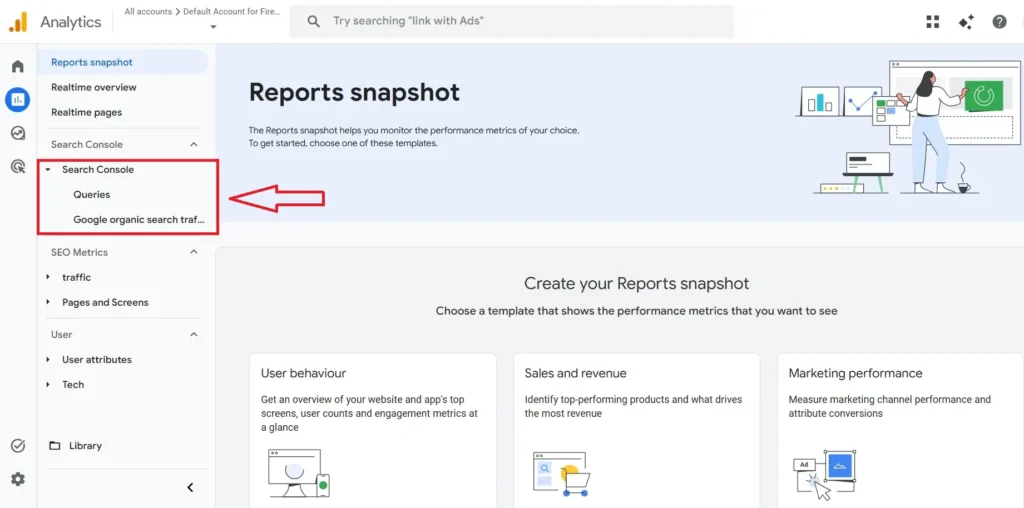
Where to Find the Reports in GA4
Navigation path:
Reports → Search Console → Queries
This is the main report used for keyword ranking analysis.
Use the Queries Report
The Queries report shows the actual search terms users typed into Google before visiting your website.
This is where you can monitor keyword rankings and SEO visibility.
What the Queries Report Shows
The report includes:
- Search queries
- Total clicks
- Impressions
- Average position
- CTR (click-through rate)
You can sort, filter, and compare this data to identify SEO opportunities.
Understanding Keyword-Level Data
Each row in the report represents a keyword or search query.
For example, you may see:
| Query | Clicks | Impressions | Average Position |
|---|---|---|---|
| seo checklist | 320 | 8,500 | 4.2 |
| technical seo audit | 120 | 3,200 | 11.8 |
This helps you identify:
- Keywords already ranking well
- Keywords close to page one
- Queries getting visibility but few clicks
- Pages needing optimization
Important Metrics to Track
Looking at rankings alone is not enough. You should monitor multiple SEO metrics together to understand real performance.
Clicks
Clicks show how many users visited your website from Google search results.
A keyword with high clicks usually means:
- Strong search intent match
- Good ranking position
- Effective title and meta description
Impressions
Impressions show how often your website appeared in search results for a keyword.
High impressions with low clicks may indicate:
- Weak titles
- Poor meta descriptions
- Low ranking positions
- Search intent mismatch
This metric helps measure visibility even before traffic increases.
Average Position
Average position shows your average ranking for a keyword in Google search results.
Examples:
- Position 1 = top result
- Position 5 = middle of page one
- Position 12 = page two
Keywords ranking between positions 8–20 often provide the best optimization opportunities because small improvements can increase traffic significantly.
CTR (Click Through Rate)
CTR measures the percentage of impressions that resulted in clicks.
Formula:
CTR=ClicksImpressions×100CTR = \frac{Clicks}{Impressions} \times 100CTR=ImpressionsClicks×100
For example:
- 1,000 impressions
- 50 clicks
- CTR = 5%
Low CTR with good rankings may suggest:
- Weak title tags
- Unclear meta descriptions
- Lack of search intent alignment
Filter Keywords by Landing Page
One of the most useful GA4 features is filtering keywords based on individual pages.
This helps you understand which keywords each page ranks for.
Finding Which Pages Rank for Which Terms
You can apply filters to:
- View keywords for a specific URL
- Analyze SEO performance page by page
- Discover supporting keywords
For example, a blog post targeting one main keyword may also rank for dozens of related search terms.
This helps you identify additional optimization opportunities.
Identifying Pages Losing Rankings
By comparing date ranges, you can spot pages that are losing visibility.
Warning signs include:
- Falling impressions
- Lower average positions
- Declining clicks
- Reduced CTR
These drops may happen because of:
- Competitor updates
- Outdated content
- Weak internal linking
- Search intent changes
- Google algorithm updates
Finding these pages early allows you to refresh and improve them before traffic drops further.
How to Find Your Top Ranking Keywords
Not all keywords deserve the same attention. Some already bring traffic, while others have strong potential but need optimization.
Inside Google Analytics and Google Search Console reports, you can quickly identify your most valuable keywords by analyzing ranking positions, impressions, and CTR.
This helps you focus on keywords that can bring faster SEO growth.
Sort Keywords by Average Position
One of the easiest ways to find your best-performing keywords is by sorting the Queries report using the Average Position column.
To do this:
- Open the Queries report in GA4
- Click the Average Position column
- Sort from lowest to highest
Lower numbers represent better rankings.
Examples:
- Position 1 = highest ranking
- Position 3 = strong page-one ranking
- Position 15 = page-two ranking
Finding Keywords Ranking in Top 10
Keywords ranking in positions 1–10 already appear on the first page of Google search results.
These are important because they usually bring the highest amount of organic traffic.
Look for keywords that:
- Have strong impressions
- Generate clicks consistently
- Match your target audience
- Lead to conversions
These keywords should be protected and improved regularly.
Optimization Tips for Top 10 Keywords
- Refresh outdated content
- Improve title tags
- Add internal links
- Update statistics and examples
- Improve page speed
- Strengthen content depth
Even moving from position 5 to position 2 can increase traffic significantly.
Find Keywords With High Impressions but Low CTR
Some keywords appear frequently in search results but receive very few clicks.
These are often the easiest SEO opportunities because Google is already showing your page to users.
Easy SEO Opportunities
If impressions are high but CTR is low, the issue is usually not visibility, it is presentation.
Common causes include:
- Weak title tags
- Generic meta descriptions
- Poor search intent match
- Unclear content value
- Stronger competitor snippets
For example:
| Keyword | Impressions | CTR |
|---|---|---|
| seo audit checklist | 12,000 | 1.2% |
This means people see your page, but they are not clicking it.
Improving your title and meta description can often increase traffic without improving rankings.
What to Improve
Focus on:
- More compelling titles
- Clear benefits in meta descriptions
- Better keyword placement
- Updated publication dates
- Rich snippets where possible
Small CTR improvements can lead to major traffic gains over time.
Find Keywords Ranking on Page 2
Keywords ranking between positions 11–20 are some of the most valuable opportunities in SEO.
These keywords are already close to page one, which means Google already trusts your content to some extent.
Why Positions 11–20 Matter
Most users rarely visit page two of Google search results.
That means moving from position 14 to position 8 can dramatically increase clicks and traffic.
Page-two keywords often require less effort compared to ranking entirely new keywords.
These are usually called “quick-win keywords.”
Quick-Win Optimization Ideas
To improve page-two rankings:
Strengthen On-Page SEO
- Add missing keyword variations
- Improve headings
- Expand thin sections
- Answer additional user questions
Improve Internal Linking
Link to the page from:
- Related blog posts
- Category pages
- High-authority pages on your website
Update Content Freshness
Google often rewards recently updated content.
Refresh:
- Statistics
- Examples
- Screenshots
- Tools and recommendations
Improve User Experience
Check:
- Mobile responsiveness
- Page speed
- Readability
- Image optimization
Match Search Intent Better
Sometimes rankings stall because the content format does not match what users expect.
For example:
- Searchers may want a tutorial instead of a definition
- They may expect a checklist, comparison, or case study
Studying the current top-ranking pages can help identify missing intent signals.
How to Track Keyword Rankings Over Time
Checking rankings once is useful, but tracking them consistently is what helps you improve SEO performance over time.
Inside Google Analytics and Google Search Console, you can compare ranking trends, monitor traffic changes, and identify keywords that are gaining or losing visibility.
This helps you make better SEO decisions before major traffic drops happen.
Compare Date Ranges in GA4
One of the easiest ways to monitor SEO progress is by comparing different time periods.
GA4 allows you to compare:
- Week-over-week performance
- Month-over-month growth
- Year-over-year SEO trends
To compare date ranges:
- Open the Queries report
- Click the date selector in the top-right corner
- Enable Compare
- Select the previous period or custom dates
This allows you to see how keyword rankings and traffic change over time.
Weekly vs Monthly Comparisons
Both comparison types are useful, but they serve different purposes.
| Comparison Type | Best Used For |
|---|---|
| Weekly | Tracking short-term SEO changes |
| Monthly | Measuring overall growth trends |
Weekly comparisons help identify:
- Sudden ranking drops
- Effects of content updates
- Technical SEO issues
- Algorithm volatility
Monthly comparisons help measure:
- Long-term growth
- Content performance trends
- Seasonal changes
- Overall SEO progress
Avoid reacting too strongly to small daily fluctuations. Rankings naturally move up and down.
Monitor Ranking Trends
Tracking trends over time helps you spot problems before they become major traffic losses.
Instead of focusing on single keywords, look for patterns across pages and keyword groups.
Spotting Traffic Drops Early
A gradual decline in impressions or average position often signals a problem.
Common warning signs include:
- Falling impressions
- Lower CTR
- Reduced clicks
- Multiple keywords dropping together
These changes may happen because of:
- Competitor improvements
- Outdated content
- Weak internal linking
- Search intent changes
- Google algorithm updates
Catching these trends early makes recovery easier.
What to Monitor Regularly
Track:
- Top landing pages
- High-traffic keywords
- Conversion-driving keywords
- Recently updated pages
- Newly published content
This helps you identify what is improving and what needs attention.
Seasonal Keyword Changes
Some keywords naturally rise and fall throughout the year.
Examples:
- “Black Friday deals”
- “Summer travel destinations”
- “Tax filing software”
Traffic drops are not always a ranking problem. Sometimes search demand simply changes by season.
Comparing data year-over-year can help you understand whether changes are normal or SEO-related.
Create Custom Keyword Reports
Standard reports are useful, but custom reports help you focus on the exact data you care about.
GA4 allows you to create filtered SEO reports for:
- Specific pages
- Keyword groups
- Traffic segments
- Device types
- Countries
This saves time and improves reporting accuracy.
Saving Filtered Reports
You can apply filters inside reports and save them for future use.
Examples:
- Only branded keywords
- Keywords ranking between positions 11–20
- Mobile search traffic
- Blog-related queries
Saved reports make recurring SEO analysis much faster.
Using Explorations in GA4
The Explorations section in GA4 allows deeper analysis than standard reports.
You can create custom dashboards to analyze:
- Organic traffic trends
- Landing page performance
- User engagement from search traffic
- Keyword-driven conversions
Explorations are especially useful for advanced SEO reporting because they allow custom combinations of metrics and dimensions.
Useful Exploration Ideas
Create reports for:
- Top-performing SEO pages
- Keywords with declining CTR
- High-impression low-click pages
- Organic conversions by landing page
- Mobile vs desktop SEO performance
How to Check Keyword Rankings for a Specific Page
Sometimes you do not want to analyze your entire website. Instead, you may want to see which keywords a single page is ranking for.
This is useful when:
- Updating old blog posts
- Improving service pages
- Monitoring newly published content
- Finding keyword opportunities
- Diagnosing traffic drops
Inside Google Analytics and Google Search Console, you can view keyword data page by page to understand exactly how each URL performs in search results.
Find the Landing Page in Search Console Reports
Start by opening the Search Console reports inside GA4.
Go to:
Reports → Search Console → Google Organic Search Traffic
This report shows the pages receiving traffic from Google search.
You can sort pages using:
- Clicks
- Impressions
- CTR
- Average position
This helps identify:
- Top-performing pages
- Pages losing rankings
- Pages with high visibility but low clicks
How to Locate a Specific Page
Use the search or filter option to find the URL you want to analyze.
For example:
- Blog post URL
- Service page
- Product page
- Landing page
Once selected, you can analyze the keywords connected to that page.
View Queries for That Page
After selecting a page, the next step is viewing the search queries associated with it.
This shows the actual keywords users searched before clicking your page in Google results.
You can usually do this by:
- Clicking the landing page URL
- Opening related query data
- Filtering the Queries report using the page URL
What You Can Learn From Page Queries
The query data helps you understand:
- Which keyword Google considers most relevant
- Which keywords bring traffic
- Which terms generate impressions but few clicks
- Whether the page ranks for unexpected searches
Example:
| Query | Average Position |
|---|---|
| seo audit checklist | 5.3 |
| technical seo checklist | 8.7 |
| website seo audit steps | 13.2 |
This reveals the full keyword footprint of the page, not just the primary keyword you targeted.
Identify Supporting Keywords
Most pages rank for multiple keywords, not just one.
These additional terms are called supporting or secondary keywords.
Understanding them helps you optimize content more effectively.
Primary vs Secondary Keywords
A primary keyword is the main search term your page targets.
Example:
- Primary keyword: “keyword research tools”
Secondary keywords are related variations or supporting topics.
Examples:
- best keyword research tools
- free keyword research software
- SEO keyword tools
- keyword research platforms
Google often ranks pages for dozens or even hundreds of related searches.
Adding relevant secondary keywords naturally can improve topical relevance and increase visibility.
How to Use Supporting Keywords
You can strengthen rankings by:
- Expanding content sections
- Adding missing subtopics
- Updating headings
- Improving FAQs
- Matching additional search intent variations
This helps your page capture more organic traffic without creating duplicate pages.
Avoiding Keyword Cannibalization
Keyword cannibalization happens when multiple pages on your website target the same keyword too aggressively.
This can confuse Google and weaken rankings.
Common signs include:
- Multiple pages ranking for the same keyword
- Rankings constantly shifting between URLs
- Lower-than-expected rankings
- Declining CTR
Example:
| Keyword | Competing Pages |
|---|---|
| seo checklist | /seo-checklist |
Instead of helping each other, the pages compete against each other.
How to Prevent Cannibalization
To avoid this issue:
- Assign one primary keyword per page
- Differentiate content intent
- Use internal linking strategically
- Merge overlapping pages if necessary
- Optimize secondary keywords carefully
A clear keyword structure helps Google understand which page should rank for each search query.
Best Metrics to Analyze Alongside Keyword Rankings
Keyword rankings are important, but rankings alone do not tell the full story.
A keyword may rank well but bring little traffic. Another keyword may generate traffic but fail to convert visitors into leads or customers.
That is why SEO performance should always be analyzed using multiple metrics together. Inside Google Analytics and Google Search Console, these metrics help you understand the real impact of your rankings.
| Metric | Why It Matters |
|---|---|
| Average Position | Shows ranking trend |
| CTR | Measures search performance |
| Impressions | Indicates visibility |
| Organic Sessions | Shows actual traffic |
| Bounce Rate | Measures content relevance |
| Conversions | Connects rankings to business results |
Average Position
Average position shows where your page typically appears in Google search results for a keyword.
Examples:
- Position 1 = top ranking
- Position 5 = middle of page one
- Position 15 = page two
This metric helps you monitor ranking trends over time.
A rising average position usually means:
- Better visibility
- More traffic potential
- Stronger SEO performance
A declining position may indicate:
- Competitor improvements
- Content becoming outdated
- Technical SEO problems
- Search intent mismatch
Why It Matters
Average position helps identify:
- Keywords close to page one
- Pages losing visibility
- SEO improvements after updates
- Long-term ranking trends
However, rankings should never be analyzed alone because higher rankings do not always guarantee clicks or conversions.
CTR (Click Through Rate)
CTR measures how often users click your page after seeing it in search results.
Formula:
CTR=ClicksImpressions×100CTR = \frac{Clicks}{Impressions} \times 100CTR=ImpressionsClicks×100
Example:
- 5,000 impressions
- 250 clicks
- CTR = 5%
A strong CTR usually means:
- Your title tag is compelling
- The meta description matches search intent
- Users find your result attractive
Why It Matters
Low CTR can reveal problems even if rankings are good.
For example:
- Ranking position: 3
- CTR: 1%
This may suggest:
- Weak titles
- Poor meta descriptions
- Unclear content value
- Strong competitor snippets
Improving CTR can increase traffic without improving rankings.
Impressions
Impressions show how many times your page appeared in Google search results.
This metric measures search visibility.
Even if users do not click your result, impressions indicate Google is recognizing your content for relevant searches.
Why It Matters
High impressions with low clicks often signal optimization opportunities.
This usually means:
- Your page is visible
- Rankings exist
- But users are not choosing your result
Impressions are useful for:
- Measuring keyword reach
- Finding rising keywords
- Identifying content visibility trends
- Discovering page-two opportunities
A growing number of impressions is often an early sign of SEO growth.
Organic Sessions
Organic sessions represent the actual visits your website receives from search engines.
Unlike impressions or rankings, this metric measures real traffic reaching your site.
You can track this inside GA4 using:
- Organic traffic reports
- Landing page reports
- Search Console integration
Why It Matters
A keyword ranking well is only valuable if it drives meaningful traffic.
Organic sessions help you understand:
- Which pages attract visitors
- Which keywords generate traffic
- Whether SEO efforts increase website visits
- How search visibility impacts engagement
Sometimes lower-ranked keywords generate more traffic because they target higher search volume queries.
Bounce Rate
Bounce rate measures how many users leave your website without meaningful interaction.
A high bounce rate may indicate:
- Poor content quality
- Slow page speed
- Weak user experience
- Search intent mismatch
However, bounce rate should always be interpreted carefully.
For example:
- A quick-answer blog post may naturally have a higher bounce rate
- A product or service page may require deeper engagement
Why It Matters
Bounce rate helps evaluate whether your content satisfies user intent.
If rankings are high but bounce rate is also high, users may not be finding the information they expected.
This can eventually affect long-term SEO performance.
Conversions
Conversions connect SEO performance to actual business results.
Examples of conversions include:
- Form submissions
- Purchases
- Phone calls
- Newsletter signups
- Demo requests
This is one of the most important SEO metrics because rankings alone do not generate revenue.
Why It Matters
A keyword with:
- Lower traffic
- But high conversion rate
may be far more valuable than a keyword bringing thousands of unqualified visitors.
Tracking conversions helps you identify:
- High-value keywords
- High-performing landing pages
- Revenue-driving traffic
- SEO ROI
This allows you to focus on rankings that support actual business goals instead of vanity metrics alone.
Common Problems When Keyword Data Is Missing
Sometimes you open Google Analytics or Google Search Console expecting to see keyword rankings, but the reports appear incomplete or empty.
This is a common issue, especially for beginners setting up SEO tracking for the first time.
In most cases, the problem is related to missing permissions, incorrect setup, delayed processing, or limited search data.
“Not Provided” Keywords
One of the most confusing things for new users is seeing keywords labeled as “not provided.”
Instead of showing the exact search query, Google hides much of the keyword information.
Why This Happens
Google started encrypting user searches to improve privacy and security.
Because of this change:
- Most organic keywords are hidden inside Analytics
- GA4 cannot display complete keyword-level data by itself
- Search query reporting now depends heavily on Search Console
This is why keyword ranking tracking today requires Search Console integration.
It is important to understand that:
- This is normal
- It affects almost all websites
- It is not a tracking error
To see keyword data properly, you should rely on:
- Search Console Queries reports
- Landing page analysis
- Search impressions and CTR data
Search Console Data Not Showing in GA4
Sometimes the Search Console integration is completed successfully, but no keyword reports appear inside GA4.
This is one of the most common setup problems.
Delayed Data Issues
Search Console data does not appear instantly after setup.
Usually:
- Existing websites may take 24–48 hours
- New websites may take several days
- Low-traffic websites may need longer
This delay is normal because Google first needs enough search data before populating reports.
If you recently connected the accounts, waiting is often the solution.
Wrong Property Connection
A very common issue is connecting the wrong property version.
Examples:
http://example.comhttps://example.comwww.example.com
Google may treat these as separate properties.
If the GA4 property and Search Console property do not match correctly, keyword data may fail to appear.
Always confirm:
- The same domain version is used
- The correct web data stream is selected
- The Search Console property is verified
Permission Problems
Permissions can also prevent reports from loading.
To connect Search Console with GA4, you usually need:
- Admin access in GA4
- Verified owner access in Search Console
Without proper access:
- Linking may fail
- Reports may stay empty
- Search Console options may not appear
If you work with a team or client website, verify your access permissions first.
Low Data in Reports
Sometimes the reports work correctly, but the data volume is very small.
This does not always mean there is a technical issue.
New Websites
New websites often have very little keyword data because Google is still discovering and evaluating the content.
In the early stages:
- Rankings fluctuate heavily
- Impressions stay low
- Traffic may be inconsistent
This is normal for newer domains.
SEO data becomes more useful as the site gains:
- Indexed pages
- Backlinks
- Authority
- Search visibility
Low Impressions
If your pages rarely appear in search results, keyword reports will naturally show limited data.
Low impressions may happen because:
- Keywords have low search volume
- Rankings are poor
- Content lacks optimization
- Competition is high
In these cases, improving SEO fundamentals can gradually increase visibility.
Focus on:
- Better content quality
- Stronger internal linking
- Keyword optimization
- Technical SEO improvements
Limited Search Console Retention
Search Console only stores data for a limited time period.
Older keyword data eventually expires from reports.
This means:
- Historical keyword tracking has limits
- Long-term trend analysis may require external SEO tools
- Exporting important reports regularly can be useful
Many SEO professionals use additional tools for long-term keyword tracking alongside Search Console and GA4.
Best Tools to Track Keyword Rankings Beyond GA4
While Google Analytics and Google Search Console are excellent starting points, many SEO professionals use additional tools for deeper keyword tracking.
These platforms offer features that GA4 does not provide, including:
- Competitor tracking
- Daily ranking updates
- Historical SERP data
- Local ranking tracking
- Mobile vs desktop tracking
- Share of voice metrics
The right tool depends on your budget, reporting needs, and SEO goals.
Google Search Console
Google Search Console is the best free tool for tracking keyword rankings directly from Google’s own data.
It provides:
- Search queries
- Average position
- Impressions
- CTR
- Landing page performance
Because the data comes directly from Google, it is highly reliable for measuring actual search visibility.
Best For
- Beginners
- Website owners
- Basic keyword tracking
- Free SEO reporting
Main Limitation
- Limited historical data
- No detailed competitor tracking
- No daily rank monitoring
Ahrefs
Ahrefs is one of the most widely used SEO platforms for keyword research and competitor analysis.
Its Rank Tracker helps monitor:
- Keyword positions
- SERP features
- Competitor rankings
- Share of voice
- Historical ranking trends
Ahrefs is especially strong for backlink analysis and SEO-focused competitor research.
Competitor Tracking
One major advantage of Ahrefs is competitor visibility analysis.
You can:
- Compare keyword gaps
- Monitor competing domains
- Track lost rankings
- Analyze competitor backlinks
SERP History
Ahrefs also stores historical ranking data, helping you analyze:
- Long-term SEO trends
- Algorithm impact
- Ranking volatility
- Content performance over time
Best For
- SEO professionals
- Agencies
- Competitor analysis
- Advanced SEO campaigns
Semrush
Semrush is another popular SEO suite with strong keyword tracking capabilities.
Its Position Tracking tool allows you to monitor:
- Daily keyword rankings
- Mobile and desktop results
- Local rankings
- Competitor visibility
- SERP feature ownership
Semrush is often preferred by marketers managing broader digital campaigns beyond SEO alone.
Position Tracking Features
Useful features include:
- Daily updates
- Location-based tracking
- Keyword cannibalization detection
- Visibility scoring
- Competitor comparison reports
Best For
- Agencies
- Marketing teams
- Local SEO campaigns
- Multi-channel reporting
SE Ranking
SE Ranking is a more budget-friendly SEO platform that still offers strong keyword tracking features.
It includes:
- Daily rank tracking
- Competitor monitoring
- Website audits
- Backlink analysis
- Local SEO tracking
Many smaller businesses and freelancers prefer SE Ranking because of its lower pricing compared to larger SEO suites.
Budget-Friendly Option
SE Ranking balances affordability with useful SEO features.
It is often recommended for:
- Small businesses
- Freelancers
- Growing websites
- Agencies with tighter budgets
Best For
- Affordable SEO tracking
- Daily keyword monitoring
- Local SEO reporting
Keyword.com or AccuRanker
Keyword.com and AccuRanker focus heavily on rank tracking accuracy and speed.
These tools are designed specifically for monitoring keyword rankings at scale.
Daily Rank Tracking
They offer:
- Fast ranking updates
- Real-time tracking
- High keyword limits
- Advanced filtering
- Accurate SERP monitoring
AccuRanker is particularly known for fast and highly accurate ranking data.
Best For
- Enterprise SEO
- Large keyword lists
- Real-time monitoring
- Agencies managing multiple clients
Keyword Tracking Tool Comparison
| Tool | Free Plan | Daily Tracking | Competitor Tracking |
|---|---|---|---|
| Google Search Console | Yes | No | Limited |
| Ahrefs | Limited tools | Weekly/Daily depending on plan | Yes |
| Semrush | Limited trial | Yes | Yes |
| SE Ranking | Trial available | Yes | Yes |
| Keyword.com | Trial available | Yes | Yes |
| AccuRanker | Trial available | Yes | Yes |
When choosing a keyword tracking tool, focus on:
- Data accuracy
- Update frequency
- Competitor analysis
- Reporting features
- Budget
- Ease of use
For many websites, combining Google Search Console with one dedicated rank-tracking platform provides the best balance of accuracy and deeper SEO insights.
How Often Should You Check Keyword Rankings?
Checking keyword rankings too often can create unnecessary stress, while checking them too rarely can make you miss important SEO problems.
The ideal tracking frequency depends on:
- Website size
- Traffic levels
- Competition
- Publishing frequency
- SEO goals
For most websites, weekly monitoring is usually enough to track meaningful SEO progress without overreacting to small changes.
Daily vs Weekly Tracking
Both tracking methods have advantages, but they are useful in different situations.
| Tracking Frequency | Best For |
|---|---|
| Daily Tracking | Large websites, active SEO campaigns, competitive industries |
| Weekly Tracking | Most blogs, business websites, and small to medium SEO projects |
When Daily Tracking Makes Sense
Daily keyword tracking is useful when:
- You manage large SEO campaigns
- Rankings change quickly in your industry
- You recently updated important pages
- You run an SEO agency
- You monitor high-value commercial keywords
Daily tracking helps identify:
- Sudden ranking drops
- Technical SEO issues
- Algorithm-related volatility
- Competitor movements
However, checking rankings every day can sometimes lead to overanalysis because small fluctuations are completely normal.
When Weekly Tracking Is Better
For most websites, weekly tracking provides a clearer picture of real SEO progress.
Weekly analysis helps you:
- Spot long-term trends
- Reduce noise from temporary fluctuations
- Measure content performance more accurately
- Focus on meaningful ranking changes
This approach is especially useful for:
- Small business websites
- Blogs
- Local SEO projects
- Newer websites
When Ranking Fluctuations Are Normal
Keyword rankings naturally move up and down.
A page may rank:
- Position 4 today
- Position 6 tomorrow
- Position 5 next week
This is completely normal.
Google constantly updates search results based on:
- Competitor activity
- User behavior
- Search intent changes
- Freshness signals
- Algorithm adjustments
Small ranking changes usually do not require immediate action.
Normal SEO Volatility
Minor fluctuations are common when:
- Rankings move 1–3 positions
- Search demand changes seasonally
- Google tests different SERP layouts
- Competitors update content
- Your page gains or loses backlinks
Temporary changes often stabilize on their own.
When You Should Actually Worry
Large or sustained drops deserve attention.
Examples:
- Rankings falling from page 1 to page 3
- Multiple keywords dropping together
- Significant impression declines
- Organic traffic falling sharply
- CTR decreasing despite stable rankings
These patterns may indicate:
- Technical SEO problems
- Manual penalties
- Search intent mismatch
- Strong competitor updates
- Algorithm impacts
What Actually Deserves Attention
Instead of focusing on every ranking movement, prioritize metrics that affect real SEO performance.
Focus on Traffic Trends
A keyword dropping from position 2 to position 3 may not matter much if traffic remains stable.
Pay closer attention to:
- Organic sessions
- Click trends
- Impressions
- Conversion performance
Traffic impact matters more than tiny ranking shifts.
Watch Keywords Near Page One
Keywords ranking between positions 8–20 deserve special attention because small improvements can generate large traffic gains.
These are often your best optimization opportunities.
Monitor High-Value Keywords
Not every keyword has equal importance.
Focus on keywords that:
- Drive conversions
- Generate leads
- Bring qualified traffic
- Support business goals
A lower-volume keyword with strong conversions is often more valuable than a high-traffic keyword with no business impact.
Look for Patterns, Not Isolated Changes
SEO decisions should be based on trends rather than single-day movements.
Examples of meaningful patterns:
- Gradual CTR decline
- Consistent ranking drops
- Falling impressions across multiple pages
- Traffic losses after site updates
Looking at patterns helps you avoid unnecessary SEO changes based on temporary fluctuations.
Keyword Ranking Best Practices
Tracking keyword rankings becomes much more effective when you focus on the right SEO signals instead of chasing rankings alone.
Many websites make the mistake of tracking hundreds of keywords without understanding:
- Search intent
- User behavior
- Conversion value
- Device differences
- Local visibility
Following these best practices helps you turn ranking data into meaningful SEO growth.
Focus on Search Intent
Search intent is the reason behind a user’s search query.
Google prioritizes pages that best match what users actually want.
Even if you target the correct keyword, your page may struggle to rank if the content does not satisfy intent.
Common search intent types include:
| Search Intent | Example |
|---|---|
| Informational | “how to check keyword rankings” |
| Navigational | “Google Search Console login” |
| Commercial | “best SEO tools” |
| Transactional | “buy SEO software” |
Before optimizing for a keyword, study the current top-ranking pages.
Look at:
- Content format
- Heading structure
- Search intent
- Content depth
- Use of visuals or examples
Matching intent correctly often improves rankings faster than adding more keywords.
Track Keywords That Bring Conversions
High rankings are valuable only when they support actual business goals.
Some keywords bring traffic but generate no meaningful results.
Others may have lower traffic but produce:
- Leads
- Sales
- Signups
- Phone calls
- Demo requests
Inside Google Analytics, you can connect keyword performance with conversion data to identify your most valuable SEO traffic.
Why Conversion-Focused Tracking Matters
Example:
| Keyword | Monthly Traffic | Conversions |
|---|---|---|
| seo tips | 5,000 | 2 |
| seo agency pricing | 500 | 25 |
The second keyword may be far more valuable despite lower traffic.
Prioritize keywords that:
- Match buyer intent
- Support business goals
- Bring qualified visitors
- Generate measurable outcomes
This approach helps avoid vanity metrics.
Watch Mobile and Desktop Rankings Separately
Keyword rankings can differ significantly between desktop and mobile search results.
A page may rank:
- Position 3 on desktop
- Position 9 on mobile
This happens because Google considers:
- Mobile usability
- Page speed
- User experience
- Device behavior
- Local relevance
Tracking both devices separately provides a more accurate view of SEO performance.
Why Mobile Rankings Matter
Most searches now happen on mobile devices.
Poor mobile performance can hurt:
- Rankings
- CTR
- User engagement
- Conversions
Check:
- Mobile page speed
- Responsive design
- Readability
- Core Web Vitals
- Mobile navigation
Many SEO tools like Semrush and Ahrefs allow separate mobile and desktop tracking.
Monitor Local Rankings if Relevant
If your business serves a specific city or region, local keyword tracking becomes extremely important.
Local rankings often differ from national search results because Google personalizes results based on location.
Example:
- “SEO agency in Mumbai”
- “dentist near me”
- “best coffee shop in Srinagar”
These searches rely heavily on geographic relevance.
What to Track in Local SEO
Monitor:
- City-based keywords
- Google Maps visibility
- Local pack rankings
- Location-specific landing pages
- Mobile local rankings
Local SEO performance may vary even between nearby cities.
Businesses targeting local customers should regularly track rankings from their target locations instead of relying only on general national rankings.
Track Branded and Non-Branded Keywords
Separating branded and non-branded keywords helps you measure SEO performance more accurately.
Branded Keywords
These include your business or product name.
Examples:
- “Red Stag Labs SEO”
- “Nike running shoes”
- “Ahrefs keyword explorer”
Branded searches usually indicate:
- Existing brand awareness
- Returning users
- High purchase intent
These keywords often rank easily because users already know the brand.
Non-Branded Keywords
These are broader industry-related searches without your brand name.
Examples:
- “keyword ranking tools”
- “best SEO software”
- “how to improve CTR”
Non-branded keywords are important for attracting new audiences through organic search.
Why Separating Them Matters
If most of your traffic comes from branded searches, your SEO growth may depend heavily on existing brand recognition.
Tracking non-branded keywords helps measure:
- Actual SEO reach
- New audience acquisition
- Organic visibility growth
- Competitive search performance
A healthy SEO strategy usually includes both branded and non-branded keyword growth.
Mistakes to Avoid When Tracking Keyword Rankings
Tracking keyword rankings can provide valuable SEO insights, but many website owners focus on the wrong data or interpret rankings incorrectly.
These mistakes often lead to poor SEO decisions, wasted effort, and misleading performance analysis.
Avoiding the following issues will help you track rankings more effectively and focus on metrics that actually matter.
Tracking Only One Keyword
One of the biggest SEO mistakes is focusing on a single keyword.
Modern search results are much more dynamic than before. A single page can rank for:
- Primary keywords
- Secondary keywords
- Long-tail variations
- Related semantic searches
For example, a page targeting:
- “keyword research tools”
may also rank for:
- “best SEO keyword tools”
- “free keyword research software”
- “tools for keyword analysis”
If you only monitor one keyword, you miss the bigger picture of how your content performs in search.
Why This Is a Problem
Focusing on a single keyword can:
- Hide traffic opportunities
- Ignore supporting keyword growth
- Create inaccurate SEO reporting
- Lead to unnecessary content changes
Instead, track:
- Keyword groups
- Topic clusters
- Supporting queries
- Landing page performance
This gives a much clearer understanding of overall SEO visibility.
Ignoring CTR
Many websites focus only on rankings while completely ignoring click-through rate (CTR).
However, rankings alone do not guarantee traffic.
Example:
| Keyword | Position | CTR |
|---|---|---|
| seo checklist | 3 | 1.1% |
A low CTR despite strong rankings often means users are not attracted to your search result.
Why CTR Matters
CTR helps measure how effective your search listing is.
Low CTR may indicate:
- Weak title tags
- Poor meta descriptions
- Search intent mismatch
- Strong competitor snippets
Improving CTR can increase traffic without changing rankings.
Focus on:
- More compelling titles
- Clear benefits
- Better keyword placement
- Stronger meta descriptions
CTR optimization is often one of the fastest SEO wins.
Obsessing Over Daily Fluctuations
Keyword rankings naturally change every day.
A page moving from:
- Position 4 to position 6
is usually normal and not a reason to panic.
Google constantly updates search results based on:
- Competitor activity
- Search intent changes
- Personalization
- Device type
- Location
- Algorithm testing
Why Overreacting Hurts SEO
Constantly changing content because of small ranking shifts can:
- Create unstable optimization
- Reduce content quality
- Confuse search intent
- Waste time on meaningless changes
Instead of reacting to daily movement, focus on:
- Long-term trends
- Traffic patterns
- CTR changes
- Conversion performance
Weekly or monthly analysis usually provides more useful SEO insights.
Not Tracking Landing Pages
Many users track keywords without monitoring which pages actually rank for them.
This creates incomplete SEO analysis.
Keyword tracking should always be connected to landing page performance.
Why Landing Pages Matter
Tracking landing pages helps you understand:
- Which URLs generate traffic
- Which pages lose visibility
- Which content converts best
- Which pages compete for the same keyword
Without landing page analysis, you may miss:
- Keyword cannibalization
- Declining page performance
- Conversion opportunities
Inside Google Search Console, combining keyword data with landing page reports provides much deeper SEO insights.
Depending Only on GA4
Google Analytics is useful for traffic and behavior analysis, but it is not a complete keyword ranking tool.
GA4 alone cannot provide:
- Full keyword visibility
- Competitor rankings
- Daily rank tracking
- SERP history
- Detailed keyword monitoring
Why This Is a Limitation
Many beginners rely only on GA4 and assume they are seeing complete SEO data.
In reality:
- Most organic keywords remain hidden
- Search Console integration is required
- Advanced tracking usually needs dedicated SEO tools
For better keyword analysis, combine:
- GA4
- Google Search Console
- Dedicated SEO platforms like Ahrefs or Semrush
Using multiple tools provides a much more accurate understanding of search performance and keyword growth.
Frequently Asked Questions
1. Can Google Analytics show keyword rankings?
Google Analytics cannot show complete keyword ranking data on its own.
GA4 mainly tracks:
- Traffic
- User behavior
- Engagement
- Conversions
To view keyword rankings, you need to connect Google Search Console with GA4. Once connected, you can access keyword-related reports such as:
- Queries
- Impressions
- Clicks
- Average position
- CTR
2. Why are keywords missing in Google Analytics?
Most keywords are hidden because Google encrypts organic search data for privacy reasons.
This is why many searches appear as:
- “not provided”
inside Analytics reports.
This behavior is normal and affects nearly all websites.
To access keyword-level search data, use Search Console instead of relying only on GA4.
3. Is Google Search Console better for keyword tracking?
Yes, Search Console is much better for keyword tracking than GA4 alone.
Search Console provides:
- Search queries
- Average ranking position
- Impressions
- CTR
- Landing page keyword data
GA4 is better for analyzing what users do after arriving on your website.
Together, both platforms provide stronger SEO insights than either tool alone.
4. How accurate is average position in GA4?
Average position is generally useful for identifying ranking trends, but it is not a fixed ranking number.
Google calculates average position based on:
- Multiple searches
- Different devices
- User locations
- Personalized results
- Search variations
For example, a keyword may rank:
- Position 3 for one user
- Position 5 for another
Because of this, average position should be treated as a trend indicator rather than an exact universal ranking.
5. Can I track competitor keyword rankings in GA4?
No, GA4 does not provide competitor keyword tracking.
It only shows data related to your own website.
To track competitors, you need dedicated SEO tools such as:
- Ahrefs
- Semrush
- SE Ranking
These tools allow you to:
- Compare rankings
- Monitor competitor keywords
- Analyze SERP visibility
- Identify keyword gaps
6. How long does Search Console data take to appear?
Search Console data does not appear instantly after setup.
In most cases:
- Existing websites may show data within 24–48 hours
- New websites may take several days or longer
- Low-traffic websites may collect data more slowly
The delay depends on how quickly Google gathers enough search data for your site.
7. What is a good average keyword position?
A “good” keyword position depends on your goals and competition level.
Generally:
| Average Position | Meaning |
|---|---|
| 1–3 | Excellent visibility |
| 4–10 | Strong page-one rankings |
| 11–20 | Good optimization opportunity |
| 21+ | Lower visibility |
Keywords ranking on page one usually receive the most traffic.
However, rankings alone are not enough. A lower-ranked keyword that brings conversions can be more valuable than a high-ranking keyword with no business impact.
Final Thoughts
Tracking keyword rankings is an important part of SEO, but relying only on Google Analytics is not enough anymore.
GA4 helps you understand:
- Traffic
- User behavior
- Engagement
- Conversions
But it does not provide complete keyword ranking data by itself.
That is why connecting Google Search Console is essential. Search Console gives you the keyword-level insights needed to understand how your pages perform in Google search results.
When both tools work together, you can analyze:
- Keyword rankings
- Impressions
- Clicks
- CTR
- Landing page performance
- Organic conversions
This creates a much clearer picture of your overall SEO performance.
It is also important to remember that rankings alone should never be the only metric you track. A keyword ranking in the top positions is valuable only if it brings meaningful traffic and supports your business goals.
Instead of focusing only on rankings, pay attention to:
- Click-through rate
- Organic sessions
- Engagement
- Conversion data
- Search intent alignment
Consistent tracking over time helps you:
- Identify SEO opportunities
- Detect ranking drops early
- Improve underperforming pages
- Understand user behavior
- Make smarter optimization decisions
SEO results rarely happen overnight. Monitoring rankings regularly and improving content based on real data is what leads to long-term organic growth.